Veery Genre Chord Deck
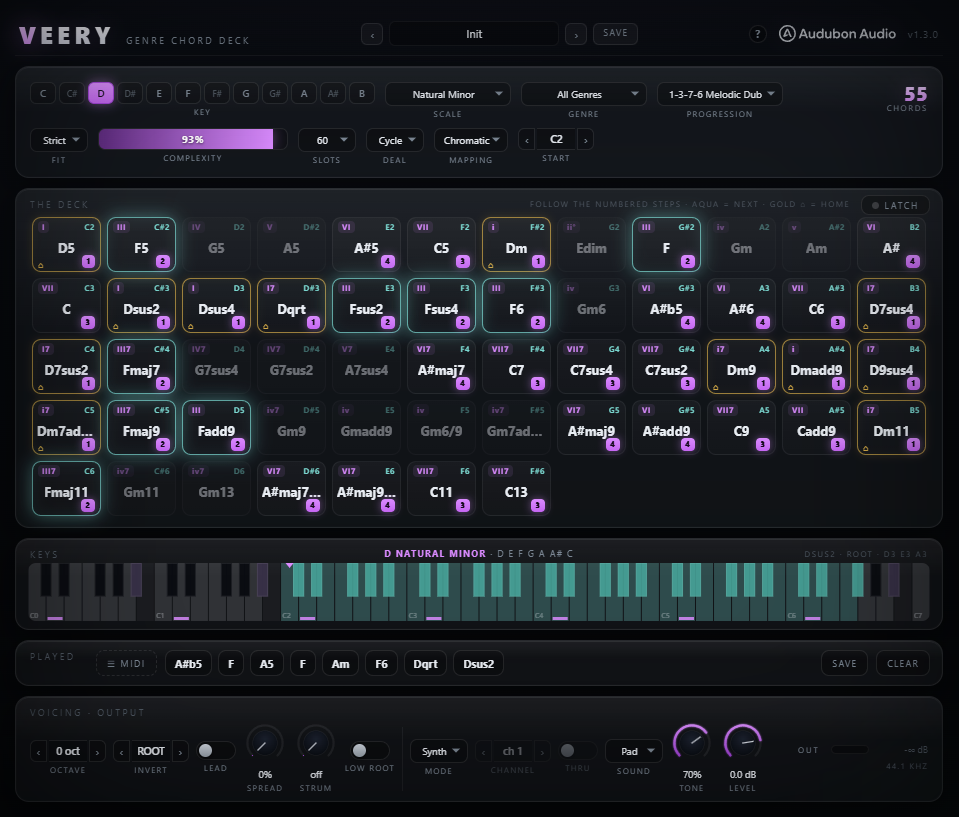
Veery is a chord-playing instrument. Set a key, a scale, and a genre, and the Harmony Engine deals a hand of fitting chords onto your keyboard — one full chord per key. Play them through the built-in 64-voice synth, stream them to your DAW as MIDI, or both. This guide covers activation, the whole deck, every voicing and guidance control, Latch, presets, the synth, the PLAYED capture lane and MIDI drag-out, and four practical workflows.
Install & activate
Install the plugin first — the VST Install Guide covers Windows and macOS step by step. The first time you open Veery in your DAW it shows an Activation Required screen instead of the deck.
- Type your serial — paste or type the serial number from your Members Area into the field (it looks like XXXXX-XXXXX-XXXXX-XXXXX-…) and click Activate.
- Or use the .lic file — click Load .lic File… and pick it, or just drag the .lic file straight onto the activation window.
- You'll see a confirmation — on success the status line reads Activated with your expiry date, and the plugin interface loads.
Activation is fully offline — no account, no iLok, no internet connection needed. It's verified and stored on your machine, so it only happens once; every session after that opens straight to the deck. If you reinstall or move to a new machine, activate again with the same serial.
Load it as an instrument
Veery is a VST3 instrument, not an insert effect. Add it to a MIDI or instrument track and route your keyboard to it. It defaults to Mode: Synth, so it makes sound the instant you load it — no extra routing.
- Play sound directly — leave Mode on Synth and pick a Sound. Every key you press fires a full chord through the internal polysynth.
- Generate MIDI chords — set Mode to MIDI Out to send chord notes to another instrument, or Both to hear Veery and send MIDI at the same time.
Set the key, scale & genre
These three choices define the deck. Any change rebuilds it instantly and re-deals the chords onto your keys.
- Key — the tonal centre, C through B.
- Scale — 38 scales, from Major and the modes through Harmonic/Melodic Minor, pentatonics, Blues, exotic and world scales, out to Bebop — plus All Notes, the full chromatic, which makes every chord in the dictionary reachable (pads show flat-based numerals there). Default is Natural Minor. Every chord in the deck fits the scale you pick.
- Genre — filters the deck to a style's characteristic chord vocabulary. There are 33 genres — Neo Soul, Deep House, Brostep, Amapiano and more — plus All Genres, which applies no filter and shows every fitting chord.
The deck is never empty: if a genre and scale combination would leave nothing, degree triads are kept as a fallback.
Shape the hand — Fit, Complexity & Slots
These trim the pool of fitting chords down to a playable set.
- Fit — Strict keeps only chords where every tone is in the scale. Borrow allows the root in-scale plus at most one colour tone outside it, unlocking altered dominants (7#9, 7b9) and idiomatic tension.
- Complexity (0–100%) — sets the highest chord rank admitted, from dyads and triads up through 7ths, 9ths, and 11/13/altered chords. It's monotone: turning it up only ever adds chords, never removes them.
- Slots (12/24/36/48/60) — caps how many chords are dealt onto keys. Fewer slots is a tight, focused hand; more spreads a wider palette across the keyboard.
- Banks — nothing is thrown away. When more chords survive than Slots allows, the overflow is paged into banks: a ‹ bank 1 / 3 › bar appears at the top of the deck and the arrows step through the rest. If everything fits on one page the bar stays hidden.
Deal & map onto the keys
Deal orders the surviving chords and Mapping lays them onto keys, starting at the Start Key.
- Deal: Cycle (default) — round-robins the scale degrees at rising complexity, so adjacent keys walk the scale (I, ii, iii…) and every degree stays represented.
- Deal: Stack — groups all chords of degree I, then all of ii, and so on. This is the classic Cthulhu-style layout.
- Mapping: Chromatic — deals onto every semitone.
- Mapping: White Keys — deals onto white keys only, so you can play freely without ever hitting an unmapped pad.
- Start Key (12–84) — the lowest MIDI note the deck begins on. Default 36 (C2). Move it to sit under your controller or clips; any keys past 127 are dropped.
The mini piano strip is a scale lens: every in-scale key wears a soft tint and the roots carry a marker, mapped trigger keys light aqua, held trigger keys light orchid, and the exact pitches sounding right now glow bright — spin Invert while holding a pad and watch the notes walk. Above it, the spell line writes your key out in full (C Natural Major · C D E F G A B), and a marker sits at the Start Key.
Voice each chord
Voicing is applied at trigger time, so you can reshape how chords sound without rebuilding the deck. Your incoming velocity carries to every note.
- Octave (−2..+2) — transposes the whole chord by octaves.
- Invert (−3..+3) — rotates chord tones; positive values lift the lowest notes up an octave. Shown the way players say it: ROOT / 1ST / 2ND / 3RD. Ignored while Voice Lead is on.
- Voice Lead — auto-picks the inversion whose centre of pitch is closest to the previous chord, for smooth, player-like motion. Greys out manual Invert. The first chord after silence uses the plain voicing.
- Spread (0–100%) — deterministic open voicing; progressively lifts inner tones an octave for a drop-2, then drop-2&4 style.
- Low Root — adds the chord's root an octave below everything else for an 808-friendly bass anchor.
- Strum (0–60 ms) — staggers the chord's onsets low-to-high through a sample-accurate scheduler. Release is never strummed. 0 ms fires the whole chord as a block.
- Latch — the Latch pill sits at the top-right of the deck. With it on, a tap on a pad or key sustains the chord until you tap the same one again — so you can hold a chord hands-free while you reach for Sound, Tone or Invert, or just sit on it and read the glow. Two gestures deliberately stay momentary so they never leave a chord stuck on: gliding across the keyboard strip, and dragging a pad off to export it.
Follow the guidance
The guidance layer only marks pads — it never plays or writes notes for you, and changing it never rebuilds the deck.
- Progression — pick one of 14 classic degree patterns (Pop Axis 1-5-6-4, 2-5-1 Jazz, House Vamp, EDM Anthem, Trap Lift, Andalusian and more). They're positional, so they read correctly in any key or scale. Member pads wear a step badge; other pads dim but stay playable.
- Good-next glow — after each chord you play, the pads that "sound right next" breathe aqua. With a progression active they're the next step(s), wrapping at the loop end. With no progression, a functional-harmony flow table lights the tasteful successors.
- The gold ⌂ home pad — a permanent landmark on the tonic, wearing a gold ring and a small ⌂ badge. It's where a phrase resolves. It never dims, even when a progression greys the other pads, and it pulses when the chord you just played is pulling back to it — that's your cue to land.
- Voice Lead pairing — combine a progression guide with Voice Lead for the smoothest results: the glow tells you where to go, Voice Lead makes the move sound connected.
The synth & MIDI output
Mode routes triggered chords to the internal synth, out as MIDI, or both.
- Sound — six voices: Saw, Piano, Pad (default), Pluck, Sub, Strings. Each has its own envelope; Saw, Pad, and Strings add a subtle dual-oscillator detune. The polysynth has 64 voices and holds the sustain pedal (CC64).
- Tone (0–100%) — scales the low-pass cutoff on every voice, from dark to bright.
- Level (−24..+6 dB) — the internal synth's output. MIDI output is unaffected.
- MIDI Channel (1–16) — the channel chord notes are emitted on. Note-offs are reference-counted, so two held keys sharing a pitch never cut each other off.
- MIDI Thru — when on, unmapped incoming notes pass through instead of being dropped.
On-screen pads and the piano strip drive the same path as hardware MIDI, so clicking a pad also feeds the MIDI output.
Route Veery into another instrument
To play someone else's synth with Veery's chords, set Mode: MIDI Out and point that instrument at Veery's MIDI output. Every host does this slightly differently, but it's always one of two shapes: put Veery before the instrument on the same track, or put them on two tracks and tell the second one to listen to the first.

Mode set to MIDI Out. Note that Sound, Tone and Level grey out — Veery's own synth is silent in this mode, and everything you hear is coming from the instrument you're driving. Channel sets which MIDI channel the chords go out on.
- Put Veery on a MIDI track and set Mode to MIDI Out.
- Make a second MIDI track and load the instrument you want to play.
- On that second track, set MIDI From to the Veery track. In the dropdown just underneath, change Pre FX to Veery — this is the step people miss.
- Set the second track's Monitor to In.
- Play into the Veery track. The second track sounds. Record-arm it to capture the chords.
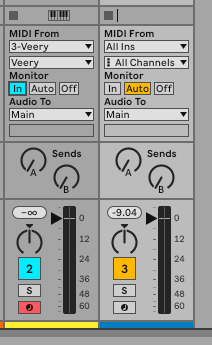
The receiving track (left) is set to MIDI From: 3-Veery, and critically the dropdown just below it reads Veery rather than Pre FX — that's the setting that picks up the plugin's MIDI output. Monitor is set to In. The Veery track itself (right) stays on All Ins.
- Load Veery, open its plugin wrapper settings (the cog), and under the VST3 / processing options set a MIDI output port — any free number, say 1.
- Load your target instrument and open its wrapper settings.
- Set that instrument's MIDI input port to the same number.
- Play Veery — the target instrument plays the chords.
- Easiest way — one track: put Veery first in the FX chain and the instrument directly after it. The instrument picks up Veery's MIDI with no routing at all.
- Two tracks — add a send from the Veery track to the instrument track, set Audio to None and MIDI to All, then record-arm the instrument track with monitoring on.
- Easiest way — drop Veery into a track's device chain and put the instrument after it; notes flow downstream automatically.
- Two tracks — add a Note Receiver device to the instrument's track and set its source to the Veery track.
- Veery on an Instrument track, Mode set to MIDI Out.
- Add a second Instrument track with your instrument on it.
- On that track's input selector, choose Veery as the MIDI source.
- Enable monitoring on the second track and play.
- Veery on an Instrument track, or loaded into the VST rack.
- Add a MIDI track. Set its Input Routing to Veery's MIDI output and its Output Routing to the instrument you want to drive.
- Record-arm or enable monitoring on that MIDI track.
If you hear nothing: check that the receiving track is monitoring (most hosts only pass plugin MIDI through when the target is armed or monitoring), that Veery's Mode is MIDI Out or Both, and that Veery's MIDI Channel matches whatever the target instrument is listening on. Menu names shift a little between versions of each DAW, but the routing itself is the same.
In Both mode you'll hear the chord twice — once from Veery's own synth and once from the target. That's useful while you set the routing up; switch to MIDI Out once it's working.
Or skip routing altogether: jam in Synth mode, then drag the PLAYED lane's ☰ MIDI grip straight onto the other instrument's track. Same chords, no routing to configure — see the next step.
Capture & drag out MIDI
Everything you trigger is remembered and ready to drop into your project as a standard .mid file — no recording pass needed.
- Drag a pad — press to play, drag off the pad to export that chord: voiced exactly as it would sound right now (Octave, Invert or Voice Lead's pick, Spread, Low Root), one 4/4 bar at your session tempo, with Strum baked into the note timing.
- The PLAYED lane — your last 8 triggered chords land here as chips; consecutive repeats collapse, so a jam reads back as a progression. Hold a chip to audition the exact voicing that was recorded.
- Drag a chip — exports that one chord. Drag the ☰ MIDI grip — exports the whole lane as one progression, one chord per bar at host tempo.
- SAVE / CLEAR — SAVE writes the progression through a file dialog (it also lights up if an OS drag can't start); CLEAR empties the lane for a new take.
- Chord inspector — the Keys panel reads out the last chord: symbol, the inversion actually applied (including Voice Lead's auto pick), and the exact pitches played.
Presets & the help card
The preset bar in the top-left names the current patch. A preset stores the whole plugin state — key, scale, genre, the whole deck setup, voicing, guidance and synth settings — so it's a complete starting point, not just a sound.
- 13 factory presets — Init plus twelve genre starting points: Dusk Writer, Neo Keys, Brostep Dark, Deep House Rhodes, Trance Anthem, Lo-Fi Loops, Future Bass Stack, Drill Sparse, Ambient Drift, Indie Anthem, Synthwave Nights and Liquid Roller. Most ship with a matching progression guide and Voice Lead already armed, so the first pad you click is already steering you somewhere musical.
- Browse them — step through with the ‹ › arrows, or click the preset name to open the full list.
- Save your own — click SAVE, type a name, and it's stored as a user preset alongside the factory ones.
- The ? button — opens the welcome card, a one-screen refresher on how to read the deck (pads and their keys, the glow and the gold ⌂ home pad, progressions, the PLAYED lane, Latch). It shows itself once on first run; the ? reopens it anytime.
One-finger songwriting
Load Veery on an instrument track in Synth mode — or skip the setup entirely and pull up a factory preset like Dusk Writer or Neo Keys, which arrive pre-steered. Otherwise: set your Key and Scale, pick a genre like Neo Soul or Deep House, and choose the Pad or Piano sound. Turn Complexity to taste and select a Progression guide such as Pop Axis or 2-5-1. Arm Voice Lead. Now follow the aqua glow from pad to pad — each key gives a complete, in-key chord and the transitions sound connected. You're writing a progression without touching a theory book.
MIDI chord generator
Set Mode to MIDI Out (or Both to monitor with the internal synth) and route Veery's MIDI output to your favourite instrument — step 09 above has the exact clicks for Ableton, FL Studio, Reaper, Bitwig, Studio One and Cubase. Choose a MIDI Channel and, if you want your own melody notes to pass, enable MIDI Thru. Play the deck and record the chord MIDI into your DAW — you now have editable chord clips voiced exactly as Veery dealt them, ready to swap sounds or humanise further. Or skip the recording pass entirely: jam until it sounds right, then drag the PLAYED lane's ☰ MIDI grip straight into the track as a finished progression.
Genre exploration
Keep one Key and Scale fixed and sweep the Genre selector. Watch the deck re-fill with each style's characteristic vocabulary — sparse minor triads for UK Drill, lush extended voicings for Jazz / Fusion, bright add9 stacks for Future Bass. Switch Fit to Borrow to let altered colour in, and nudge Complexity up for richer chords. It's a fast way to audition how a chord idea sits across different scenes.
Wide pad layering
Choose the Pad or Strings sound, raise Spread toward 60–100% for an open, pianistic voicing, and enable Low Root to anchor the bottom. Add a little Strum (10–25 ms) for a gentle roll on each chord. Lower Tone for a warm bed or raise it for air. Turn on Latch so one tap holds the chord and both hands stay free to sweep Tone and Spread while it rings — or hold chords across bars with the sustain pedal instead. Either way the 64-voice count keeps overlapping chords clean without pumping.