Getting Started

VST Install Guide

Step-by-step instructions for installing Audubon Audio plugins on Windows and macOS.

Invite-Only Beta Important — Please read before installing

Audubon Audio is currently in invite-only beta. Our plugins have not yet gone through Apple notarization or Microsoft code-signing certification — a process we are working toward for our full public release.

Because of this, you may encounter security warnings from your operating system during installation:

  • Windows: Windows Defender or SmartScreen may flag the plugin file when it is moved into the VST3 folder. This is expected for unsigned software.
  • macOS: Gatekeeper will quarantine the plugin and prevent it from loading. The macOS guide below includes a step to remove this restriction using Terminal or System Settings.

These warnings appear because the files have not been verified by Apple or Microsoft — not because anything is wrong with the plugin itself.

You are never required to proceed. If you are not comfortable bypassing these security warnings during the beta period, that is completely understandable and we respect that decision. Wait for our certified public release, or reach out if you have any questions before continuing.
Back to Members Area
Before you begin: Close your DAW completely before installing. Download your plugin file from the Members Area under Files & Presets.
1
Download & Extract the .zip
In your Members Area, locate the plugin under Files & Presets and click Download. Once downloaded, right-click the .zip file and select Extract All. Inside you will find a .vst3 folder.

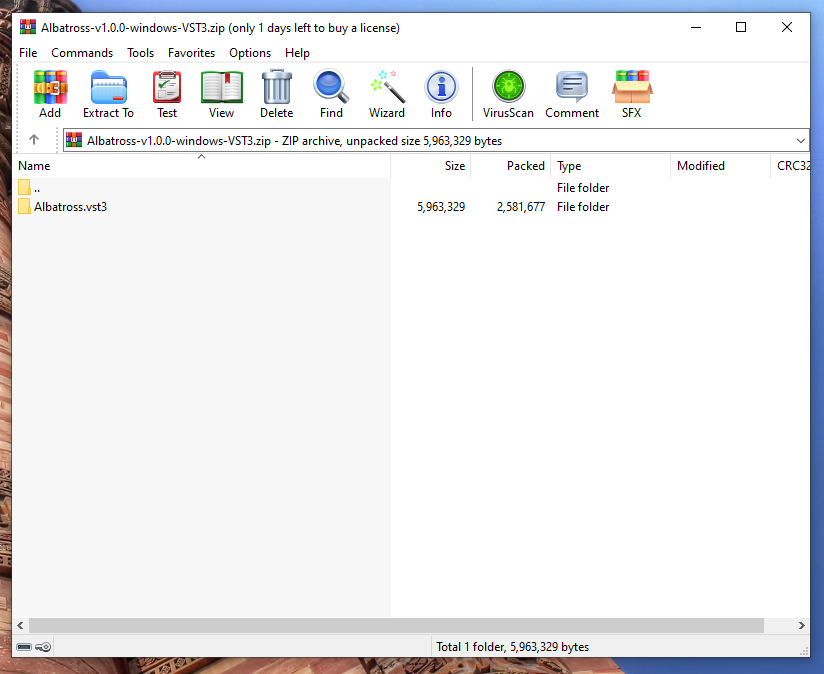
Screenshot coming soon
2
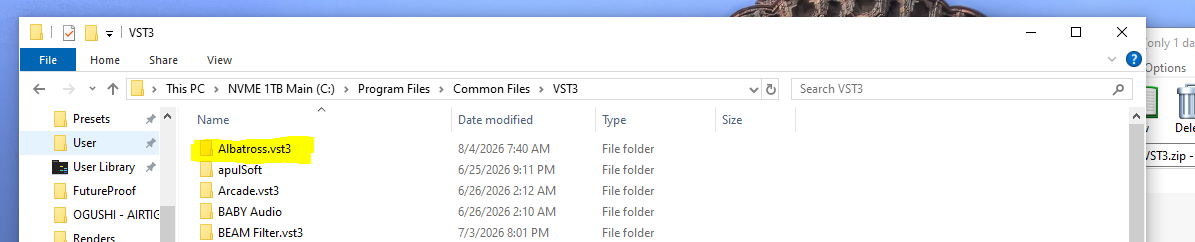
Open the VST3 Folder in Windows Explorer
Open a new Windows Explorer window and paste the following path into the address bar, then press Enter:

C:\Program Files\Common Files\VST3\

This is the standard VST3 location that all major DAWs (Ableton, FL Studio, Reaper, etc.) scan by default. If the folder doesn't exist, create it.

Screenshot coming soon
3
Drag & Drop the .vst3 File
Drag the .vst3 folder from your extracted zip directly into C:\Program Files\Common Files\VST3\. Windows may ask for administrator permission — click Continue to confirm.
Windows Defender / SmartScreen notice: Because our plugins are not yet Microsoft code-signed, Windows may show a warning when you move the file. If SmartScreen blocks the action, click More info → Run anyway. If Windows Defender flags the file, select Allow on device. These prompts appear for all unsigned software — they are expected during our beta period.
Screenshot coming soon
4
Open Your DAW & Scan for Plugins
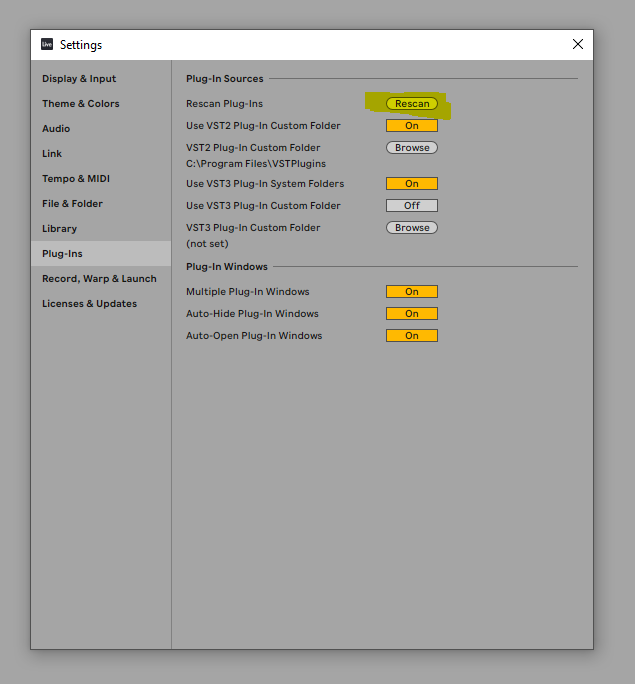
Launch your DAW and run a plugin rescan. In most DAWs this is under Preferences → Plugins → Scan or similar. The Audubon Audio plugin will appear in your instrument/effect browser once detected.
Screenshot coming soon
Back to Members Area
Before you begin: Quit your DAW completely before installing. Download your plugin file from the Members Area under Files & Presets. macOS 10.15 (Catalina) or later required.
1
Download & Extract the .zip
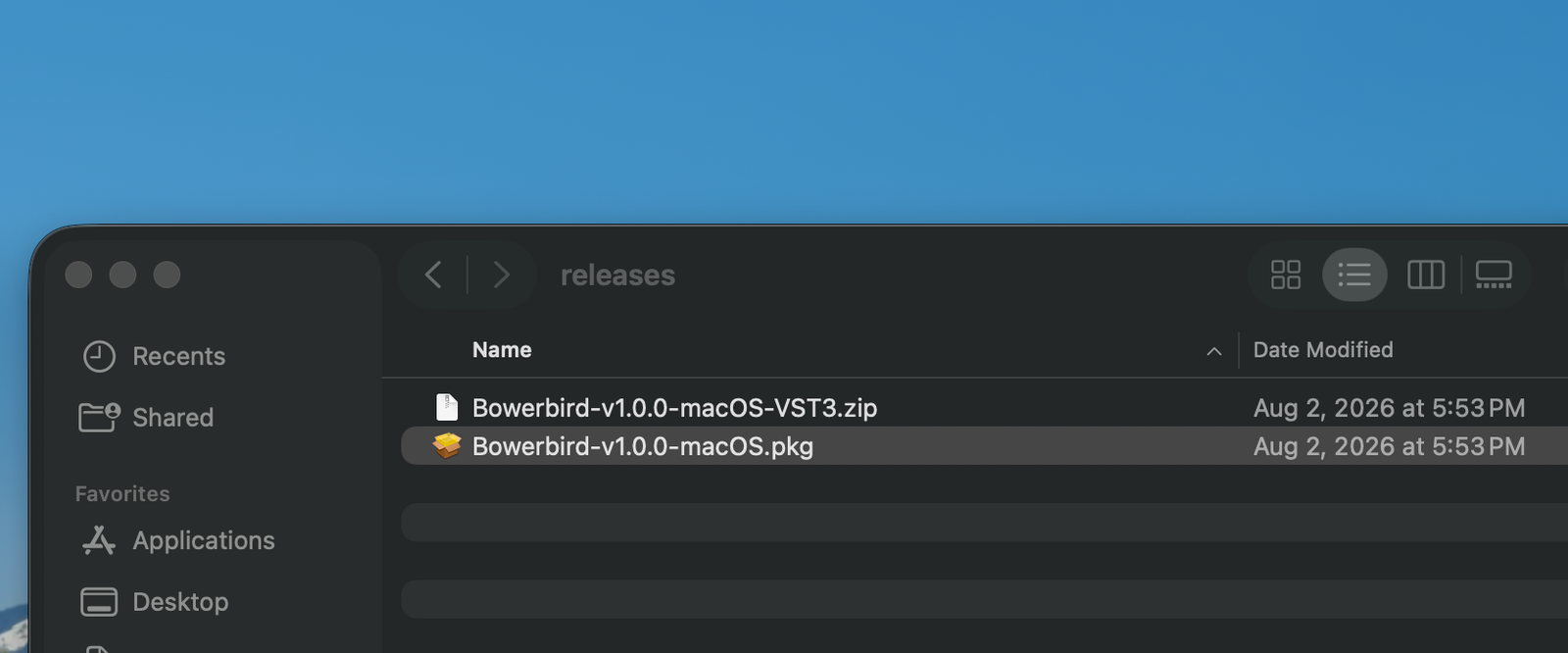
In your Members Area, locate the plugin under Files & Presets and click Download. Once downloaded, double-click the .zip to extract it. Inside you will find a .vst3 bundle.
Screenshot coming soon
2
Open the VST3 Folder in Finder
In Finder, press Cmd + Shift + G to open the Go To Folder dialog. Type the following path and press Enter:

/Library/Audio/Plug-Ins/VST3/

This is the standard VST3 location recognized by Logic Pro, Ableton, and most other macOS DAWs. If the folder doesn't exist, create it.
Screenshot coming soon
3
Drag & Drop the .vst3 Bundle
Drag the .vst3 bundle from your extracted zip into the /Library/Audio/Plug-Ins/VST3/ folder. macOS may ask for your login password to authorize moving files into that directory — enter it to confirm.
Gatekeeper notice: Because our plugins are not yet Apple-notarized, macOS will quarantine the file automatically. Your DAW will not load the plugin until you remove this restriction. Step 4 below covers exactly how to do that.
Screenshot coming soon
4
Remove Apple Quarantine
Because Audubon Audio plugins are not yet Apple-notarized, macOS quarantines the file automatically and Gatekeeper silently prevents your DAW from loading it — even after a rescan. You must remove the quarantine flag before the plugin will work. Choose either option below.
Option A — Terminal (recommended):

Open Terminal (press Cmd + Space, type Terminal, press Enter). Run the command below, replacing PluginName.vst3 with the exact filename of your plugin:

xattr -rd com.apple.quarantine "/Library/Audio/Plug-Ins/VST3/PluginName.vst3"

Press Enter. You may be prompted for your login password. No output means the command succeeded.
Option B — System Settings (no Terminal required):

After your DAW fails to load the plugin, open System Settings → Privacy & Security and scroll to the bottom of the page. You will see a message that the plugin was blocked from running. Click "Allow Anyway", confirm with your password, then relaunch your DAW and rescan.
Not comfortable with either option? That is completely fine — you are never required to proceed. These steps are only necessary because we have not yet completed Apple's notarization process. We will notify all beta members when certified builds are available. Contact us if you have any questions before continuing.
5
Open Your DAW & Scan for Plugins
Launch your DAW and run a plugin rescan. In Logic Pro go to Logic → Preferences → Plug-in Manager → Reset & Rescan. In Ableton go to Preferences → Plug-ins and rescan. The Audubon Audio plugin will appear in your browser once detected.
Screenshot coming soon