Insert Owl twice to measure any two points in your chain, then level-match them in one click and A/B your processing honestly. · Watch on YouTube ↗
How Owl Works
One Plugin, Inserted Twice
Owl is a single VST3 plugin. You insert it twice and it takes on two roles automatically. The upstream copy becomes the Tap — a silent measurement point that captures the audio where it sits and transmits level data over a fast inter-process link. It does not change the sound at all.
The downstream copy becomes the Monitor. It shows the Tap's measurements and its own side by side, so you can compare levels at two points in your signal path in real time — and it has tools to match the loudness between the two positions automatically. There is nothing to name and no second plugin to install: same binary, two jobs, decided by chain order.
The Upstream Copy Becomes the Tap
Chain order decides the roles. Whichever copy processes audio first becomes the Tap; the one that runs later becomes the Monitor. Owl works this out on its own from the play-head — you don't set it. (If you ever need to, the Role selector lets you force Auto, Tap, or Monitor.)
EQ · Comp · Limiter
You can also place the two copies on completely different tracks. Set both to the same Group (A–H) and they find each other automatically when you press play — no matching sample rate or buffer size required.
Setting Up — Step by Step
Follow these steps to get Owl running on your session:
The Tap Face
Tap Interface
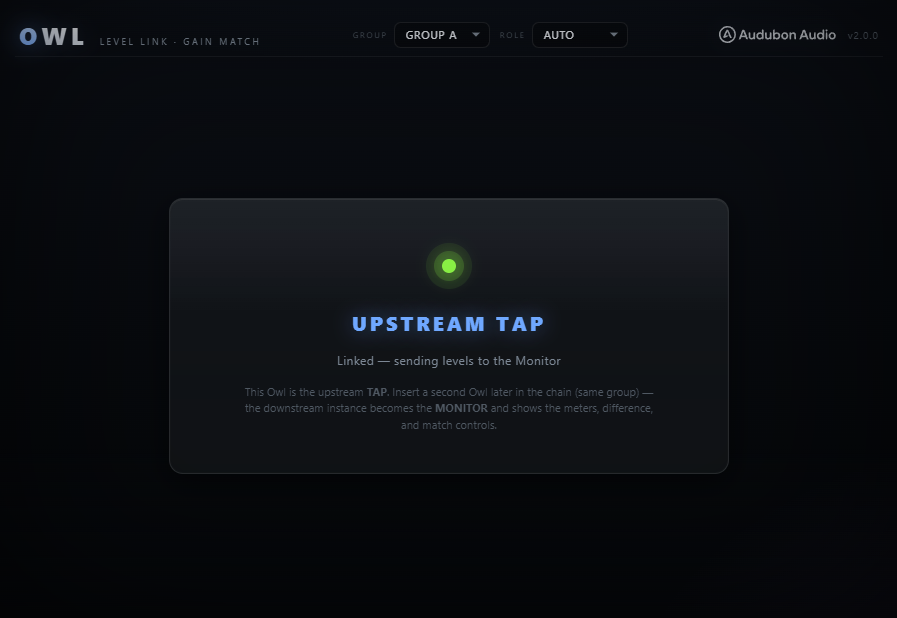
When a copy of Owl is the upstream instance, its window shows the compact Tap face — a status card with the Group and Role selectors in the header. All the measurement display lives on the Monitor. The Tap's only job is to measure audio at its position and transmit the data; it never changes the sound.
The status line shows the link state at a glance. If gain matching was applied while this copy was the Monitor (for example before the roles swapped), the Tap face still shows that leftover correction with a CLEAR button, so applied gain is never hidden from you.
This copy is the upstream Tap and is linked to a downstream Monitor on the same group. Everything is working correctly.
Only one Owl is on this group. Insert a second copy downstream, set it to the same group, and press Play.
A third copy of Owl is set to this group — a group only holds one Tap and one Monitor. Move the extra copy to a different group (A–H) or remove it.
The Monitor Face — Reading the Meters
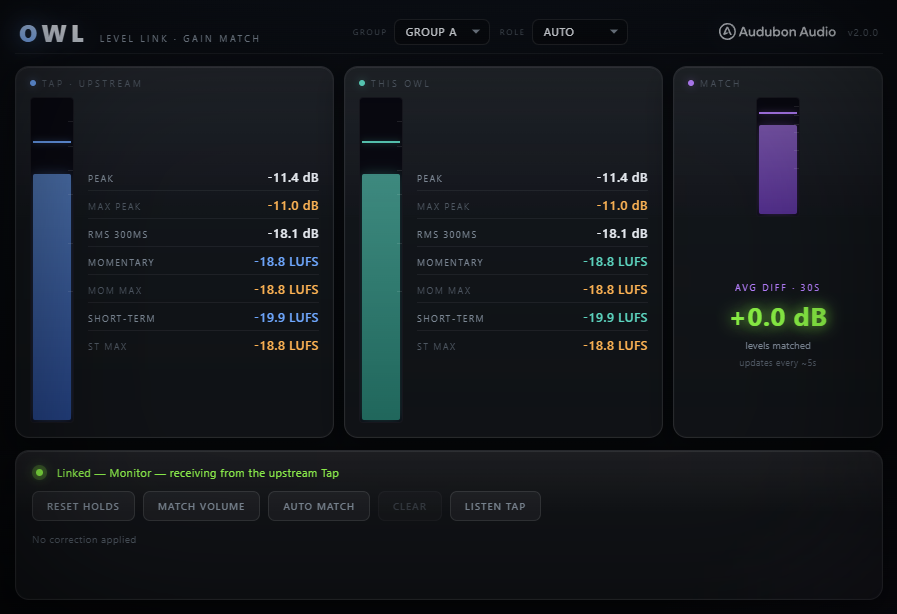
Three Meter Columns
The Monitor window is divided into three vertical columns, each showing a different signal position. All meters refresh live.
What Each Meter Row Means
Both the Tap and This Owl columns display the same seven rows. Understanding what each row tells you is the key to using Owl effectively.
How to Read the Level Bars
Each column has a vertical level bar alongside its numeric readouts. The bar has two layers: a filled level bar that tracks the RMS level in real time, and a peak tick mark near the top that shows the instantaneous peak. When the peak tick approaches the top of the bar, the signal is near 0 dBFS. When the Tap bar is noticeably taller than the This Owl bar, your processing is attenuating the signal — as expected from a compressor or limiter.
A This Owl bar that is taller than the Tap bar means your processing is adding gain somewhere in the chain between the two points. This might be intentional (a boost EQ, a makeup gain on a compressor) or accidental.
Monitor Controls — Matching, Listen & Reset
Avg Diff Panel — Understanding the Number
In the corner of the Monitor is the Avg Diff · 30s panel. This shows the rolling 30-second average difference between the Tap RMS and the Monitor's own RMS, refreshed roughly every 5 seconds. It reads Tap RMS minus This Owl RMS:
Reset All Holds
The RESET ALL HOLDS button clears every max/hold value in both the Tap and This Owl columns at once. The Monitor sends a reset signal to the Tap through the shared link, so both clear simultaneously — you do not need to open the Tap window separately.
Use this whenever you want to start a fresh measurement: after setting levels, after making a major change to your chain, or at the beginning of a new pass. All amber hold values drop back to −inf immediately.
Match Volume (Manual)
Once the Avg Diff panel has collected enough data (at least ~5 seconds of audio), the MATCH VOLUME button becomes active. Clicking it reads the current Avg Diff value and applies that exact dB correction as a gain offset on the Monitor's output.
For example: if the Avg Diff shows +3.2 dB (tap point is louder), clicking Match Volume applies +3.2 dB to the Monitor's output, bringing it up to match the Tap's average level. The Match meter column shows the result after correction is applied.
The gain readout below the buttons shows the currently applied correction: Correction applied: +3.2 dB. This correction is a fixed offset — it does not adapt as levels change, and it is saved with your project. Use Auto Match if you need the correction to stay current as you make adjustments.
Auto Match (Continuous)
AUTO MATCH keeps the level correction continuously updated rather than applying a fixed snapshot. It uses a fast exponential moving average of the RMS difference between the Tap and the Monitor and updates the applied correction as the signal moves. The status bar reads LINKED — Auto Matching Volume Active when it is running.
This is most useful when you are actively tweaking compressor or EQ settings and you want the Monitor's output to stay loudness-matched to the Tap continuously as you make changes. Without Auto Match, every parameter change that affects the output level would throw off a manual Match Volume correction.
Click AUTO MATCH again to toggle it off, or click CLEAR to both stop Auto Match and remove the applied correction entirely. The button label changes to AUTO MATCH ON while active.
Clear
CLEAR removes all applied gain correction — both manual Match Volume and Auto Match — and returns the Monitor to unity gain. The Match meter column returns to showing the uncorrected level. Use this when you want to go back to comparing raw unmatched levels or when you have made a large change to your chain and want to re-analyze from scratch. Because match gain is saved with the project, Clear is also how you remove a correction you no longer want.
Listen Tap — A/B the Two Points by Ear
LISTEN TAP lets you hear the audio at the Tap's insert point through the Monitor's output. Owl streams the Tap-point audio over the link, time-aligned to the Monitor, and crossfades to it with a short (~15ms) fade so there's no click. Press it again to return to the normal signal. The status reads LISTENING TAP while it's active.
Combined with Match Volume, this is the fastest honest A/B you can do: match the levels first, then toggle Listen Tap to flip between "before your processing" and "after" at the same loudness — so what you hear is the effect of the chain, not the volume change it introduces.
Monitor Status Messages
All Status States Explained
The status line on the Monitor tells you exactly what is happening between the two copies of Owl.
Everything is correct. This copy is the downstream Monitor and is linked to an upstream Tap on the same group. Meters are live and accurate.
Linked and Auto Match is running. The Monitor is continuously adjusting its output gain to match the Tap's level.
Only one Owl is on this group. Insert a second copy at your other measurement point, set it to the same group (A–H), and press Play. If both copies are already loaded, make sure they share the same group letter.
Three or more copies of Owl are set to the same group — a group only holds one Tap and one Monitor. Move the extra copy to a free group (A–H) or remove it.
Common Use Cases
Level-Matched A/B of Your FX Chain
Insert Owl at the very start of your FX chain, before any processing (the Tap), and again at the end (the Monitor). Set both to the same group. Play for 30 seconds and click MATCH VOLUME so the two points sit at the same loudness.
Now toggle LISTEN TAP to flip between the Tap point (before processing) and the Monitor point (after) at matched loudness — or use your DAW's FX chain bypass. Because Match Volume compensates for the level difference the processing creates, what you hear when you toggle is the processing quality alone, not the volume change it introduces. This is how engineers do a fair, level-matched A/B.
Monitoring Pre/Post Compression or Limiting
Insert the Tap before your compressor or limiter and the Monitor after. Watch the LUFS Short-term readings in both columns while audio plays. The difference between the Tap and This Owl short-term tells you how many dB of loudness reduction the compressor is producing on average over 3 seconds. The RMS 300ms comparison tells you the moment-to-moment gain reduction.
Enable AUTO MATCH and then adjust the compressor's threshold or ratio. Because the output level is continuously corrected, what you are hearing through the Monitor reflects the effect of the compressor's tonal and dynamic shaping — not its loudness change. This lets you dial in exactly the right amount of compression by ear without the louder output biasing your perception.
Loudness Compliance Check
Place the Monitor after your master limiter (with a Tap earlier for reference). Watch the LUFS Momentary and LUFS Short-term values in the This Owl column during playback. These are the numbers streaming platforms measure. For Spotify, Apple Music, and most major services the normalization target is around −14 LUFS — your short-term readings should sit in this neighborhood during the loudest sections of your track.
Use the Max Peak hold row to confirm your limiter is keeping peaks under control. If Max Peak ever reaches 0 dBFS, your limiter's ceiling is set too high — pull it down to leave headroom (many engineers target −1 dBFS).
Cross-Track Level Comparison
Insert Owl on a reference track (a professional mix you are comparing against) and again on your own master bus, both set to the same group. The Monitor shows one point in the Tap column and the other in the This Owl column simultaneously — use this to see at a glance whether your master's LUFS, RMS, and peak readings are in the same territory as the reference. Across two separate tracks the roles fall out of the DAW's processing order; if the columns are the reverse of what you expect, set the Role selector on each copy to force which one is the Tap and which is the Monitor.