Audubon · Plugins
OWL-001  ·  Released v2.1
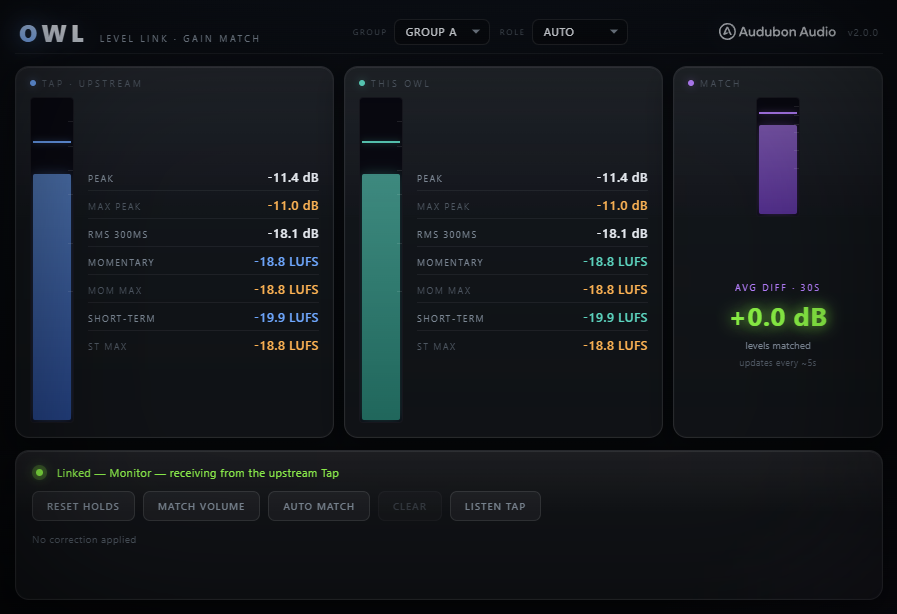
Owl linked — Tap, This Owl, and Match panels
v2.0.0 · VST3 PLUGIN EST. 2026 · AUDUBON AUDIO
Level Link · Gain Match

Owl.
Levels, linked.

One plugin. Insert it twice on a track — once before your processing, once after. The upstream copy becomes a silent Tap; the downstream copy becomes the Monitor, reading both points side by side and matching their loudness in real time. No sends, no buses, no routing.

Free · v2.1.0
Free
Format
VST3 Win 64 · macOS Universal
Setup
1 insert twice
Measurements
7 per point
Link
Groups A–H zero-latency
License
Royalty-free commercial OK
01 — Overview

One plugin. Inserted twice.

Owl is a single VST3 you drop on a track twice. The upstream copy — earlier in the chain — becomes the Tap: silent, it just measures and transmits. The downstream copy becomes the Monitor: it reads both points, shows the full metering UI, and matches their loudness. Roles are detected automatically from chain order.

VST3 Insert Twice Auto Tap / Monitor 7 Measurements Gain Match Zero Latency

One binary, two roles. The same plugin becomes a Tap or a Monitor depending on where it sits — no separate downloads, no naming two different plugins, no picking the wrong one.

Put a Tap at the start of your chain and a Monitor at the end to A/B a whole FX rack level-matched. Or put the Tap before your compressor and the Monitor after to watch exactly what it does to your loudness. The two copies link over Windows named shared memory — no audio bus, no send, no added latency.

Owl inserted twice on a track — Tap upstream, Monitor downstream
Tap + Monitor · linked
02 — The Engine

Named shared memory. OS-level speed.

Every Owl instance is the same binary sharing one symmetric memory block per group. Each copy writes its own seven measurements and its play-head position every processing block; the other copy reads them — zero copies, zero inter-plugin audio routing, zero added latency.

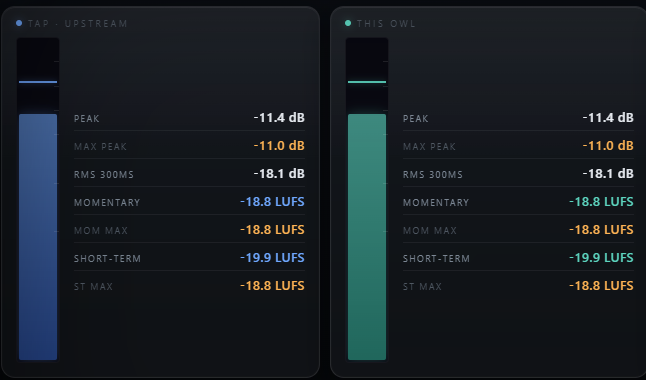
Owl Tap and Monitor faces side by side
Windows Named Shared Memory

Whichever copy loads first creates a named memory block in the Windows OS; the second copy attaches to the same block and claims the other slot. Both access the same physical memory — the fastest inter-process communication the platform offers.

Automatic Role Detection

Both copies see the same timeline position each block, so Owl reads which one runs first and assigns Tap (upstream) and Monitor (downstream) itself. No manual pairing — though a Role selector lets you force Auto, Tap, or Monitor if you need to.

Per-Block Updates

Measurements are written and read every audio processing block. At 128 samples / 44.1 kHz, that's 344 updates per second — fast enough to track transients, volume rides, and automated fader moves with no perceptible lag.

Groups A–H

Two copies link when they're set to the same group. Eight groups mean up to eight independent Tap/Monitor pairs in one session — set different tracks to different groups so they never cross. Add a third copy to a group and both plugins warn you.

03 — Seven Measurements

Both points, side by side.

The Monitor shows two matching columns — the Tap's readings and its own — each with the same seven rows, so you can read the difference at a glance. Amber rows hold their maximum until you reset them.

01
Peak dB

Instantaneous sample-accurate peak. The fastest reading — responds to transients within a single sample period. Watch it for clipping near 0 dBFS.
InstantaneousdBFS
02
Max Peak

Highest peak seen since the last reset. It only ever climbs — the worst-case transient of the session, held until you clear it.

HolddBFS
03
RMS 300 ms

Root-mean-square average over a rolling 300 ms window. Tracks perceived energy over time rather than individual peaks — the core value used for gain matching.

300 ms windowdBFS
04
LUFS Momentary

ITU-R BS.1770 momentary loudness over a 400 ms sliding window. Fast, program-aware loudness for catching loud moments as they pass.

400 ms windowLUFS
05
LUFS Mom Max

Highest momentary LUFS reached so far, held until reset. The loudest instant of the pass, ready to compare between Tap and Monitor.

HoldLUFS
06
LUFS Short-term

ITU-R BS.1770 short-term loudness over a 3-second sliding window. A stable read of section-level loudness for mix-balance and streaming targeting.

3 s windowLUFS
07
LUFS ST Max

Highest short-term LUFS held since reset. Because short-term is already a 3-second average, this is a reliable read of your loudest sustained section.
HoldLUFS
04 — The Protocol

Tap sends. Monitor listens.

Owl Monitor face showing live measurements
A — Setup
Insert Twice, Pick a Group

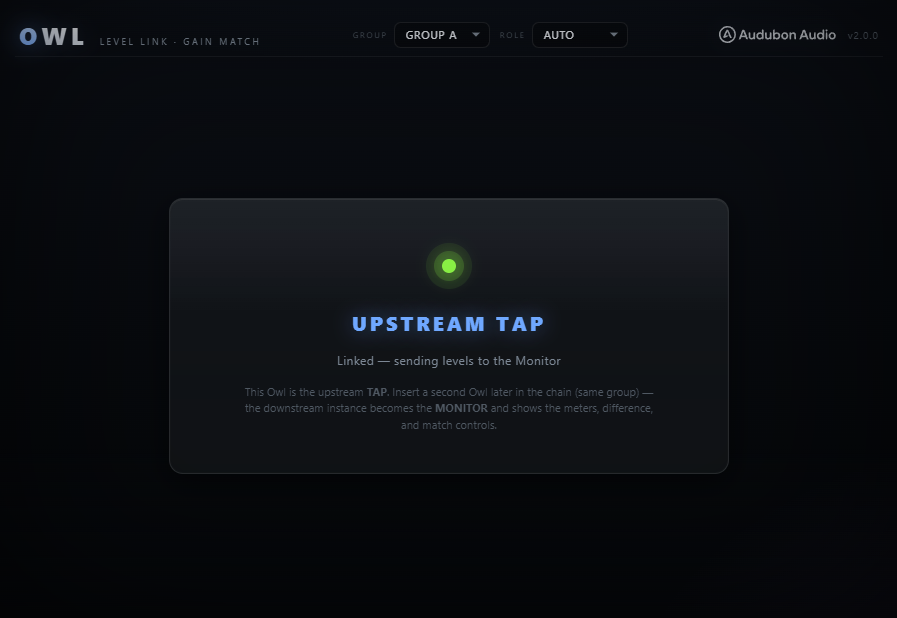
Drop Owl on the track at your Tap point, drop it again at your Monitor point, and set both to the same group (A–H). Press play and the two copies link — the upstream one shows the compact Tap face, the downstream one shows the full Monitor.

B — Multi-pair
Up to Eight Independent Pairs

Each group is a separate memory block. Run a group-A pair on your drum bus, a group-B pair on your vocal, a group-C pair on your master — up to eight at once, fully independent. Put a third copy on one group and both plugins flag the overflow.

C — DAW-agnostic
No DAW Routing Changes

The link is handled by the OS, not by the audio engine. Owl works identically in Ableton, FL Studio, Reaper, Cubase, and any VST3 host — the DAW never needs to know the two copies are talking.
05 — Match & Listen

Take the level out of the comparison.

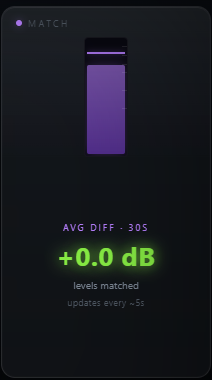
Owl Monitor showing the Avg Diff panel and match controls
A — Avg Diff · 30s
One Honest Number

The Monitor averages the RMS difference between the Tap and its own point over a rolling 30-second window, refreshed every ~5 seconds. It reads "tap point is louder" or "this point is louder" so you know at a glance which way the chain is pushing the level.

B — Match Volume
Level-Match in One Click

Match Volume applies that exact difference as a gain offset on the Monitor's output, so both points sit at the same loudness. Auto Match keeps it updating continuously as you tweak, and the correction is saved with your project. Clear returns to unity.

C — Listen Tap
A/B the Two Points by Ear

Listen Tap crossfades the Monitor's output to the Tap-point audio, streamed over the link and time-aligned. Toggle it to hear before-vs-after your processing — and with Match Volume on, you're comparing the sound, not the level.

06 — Controls

Same header. The Monitor does the work.

Both faces carry the Group and Role selectors up top. The Tap stays minimal — it just measures. Everything else lives on the Monitor face, where you match levels and A/B the two points.

Group
A – H

The link channel. Two copies set to the same group pair up; different groups stay independent. On both faces — change it any time, takes effect immediately.

Role
Auto / Tap / Monitor

Auto detects Tap vs Monitor from chain order and is right almost always. Force Tap or Monitor for unusual routings where Owl can't infer the order from the play-head.

Match Volume
Monitor

Snapshots the current Avg Diff and applies it as a fixed gain offset on the Monitor output, level-matching the two points. Saved with the project.

Auto Match
Monitor · toggle

Keeps the correction continuously updated with a fast moving average — the output stays level-matched while you tweak the processing between the two points.

Listen Tap
Monitor · toggle

Crossfades the Monitor output to the Tap-point audio so you can A/B before vs after your chain by ear. Time-aligned, ~15 ms fade in and out.

Reset All Holds
Monitor

Clears every amber max/hold value on both columns at once — the Monitor sends the reset to the Tap over the link, so both clear together.

Clear
Both faces

Removes all applied gain — manual and Auto Match — and returns to unity. Shown on both faces so leftover gain is never hidden if roles later swap.
07 — Workflow

Linked in seconds, balanced in minutes.

Owl inserted twice on a chain — Tap before processing, Monitor after Owl upstream Tap face
01
Insert Owl at your Tap point — the start of the chain, or just before the processor you want to measure.
02
Insert Owl again at your Monitor point — later in the same chain, or on another track.
03
Set both copies to the same group (A–H). Leave Role on Auto — Owl works out which is Tap and which is Monitor.
04
Press play. The upstream copy shows the Tap face; the downstream copy fills the Monitor with both points' seven measurements, updating every buffer cycle.
05
Let the Avg Diff settle (~5s), then hit Match Volume — or Auto Match — to level-match the two points. Use Listen Tap to A/B by ear.
06
Need more? Add another Tap/Monitor pair on a different group — up to eight running independently in one session.
08 — Specifications

Everything, on one page.

Format
VST3
Platform
Windows 10 / 11 · macOS 10.13+ (Universal — Apple Silicon & Intel) · 64-bit
Version
2.1.0
Plugin count
1 — insert twice; roles (Tap / Monitor) auto-detected
IPC method
Named shared memory on Windows, POSIX shared memory on macOS — zero-copy, zero-latency
Measurements per point
7 — Peak, Max Peak, RMS 300 ms, LUFS Momentary, Mom Max, Short-term, ST Max
Update rate
Every audio processing block (up to 344 Hz at 128 smp / 44.1 kHz)
RMS window
300 ms rolling
Avg Diff panel
30 s rolling average, refreshed ~every 5 s
Gain match
Match Volume (fixed) + Auto Match (continuous) · saved with project
A/B listen
Listen Tap — monitor the Tap-point audio, time-aligned, ~15 ms crossfade
Link groups
8 (A–H) — up to 8 independent Tap / Monitor pairs
LUFS standard
ITU-R BS.1770 — momentary (400 ms) & short-term (3 s)
State save
Group, role, and match gain saved with DAW project as XML
09 — Fine Print

Documentation.

DAW
Any VST3-compatible host — Ableton Live 11+, FL Studio 20+, Reaper, Cubase, Studio One, Bitwig. Insert two instances of the one Owl plugin on your track.
Operating System
Windows 10 or 11 (64-bit), and macOS 10.13 High Sierra or later — one Universal build runs natively on both Apple Silicon and Intel Macs. Plugin-to-plugin communication uses shared memory: named shared memory on Windows, POSIX shared memory on macOS.
Installation
One plugin, one installer. Your DAW finds Owl automatically — insert it twice wherever you want a Tap and a Monitor. No separate downloads.
CPU
Very light — Owl performs measurement and display only, with no audio processing beyond analysis and an optional gain offset. CPU impact is negligible even with several pairs active at once.
Updates
Current release 2.1.0. Free updates for all future 2.x releases.
v2.1.0 — Update check, from the logo
The Audubon Audio wordmark in Owl’s header is now a button. Click it and Owl asks audubonaudio.com one question — which build is current — then shows that number beside the one you are running, with a link straight to the members area if there is something newer and a plain “you have the current version” if there is not. If it cannot reach us it says so rather than claiming you are up to date. This is the only moment Owl touches the internet, it happens only on that click, and nothing about you goes with it — no serial, no licence, no machine id, not even your version or operating system. The comparison happens on your own machine.
v2.0.0 — One Plugin, Inserted Twice
The Carrier and Receiver pair is now a single Owl plugin you insert twice. Roles (Tap / Monitor) are detected automatically from chain order, with an Auto / Tap / Monitor override. Linking moves to explicit Groups A–H (up to 8 independent pairs). Adds Listen Tap A/B monitoring of the tap-point audio, and gain-match corrections that persist with your project. Existing Owl serials continue to work.
v1.0.1 — Stability Update
Fixed an edge case where the IPC channel could fail to reconnect after a DAW project reload without restarting the host. Improved shared memory cleanup on plugin removal.
v1.0.0 — Initial Release
First public release. Carrier + Receiver plugin pair communicating via named shared memory IPC. Real-time volume display on the Receiver, cross-channel volume visibility, zero audio processing overhead.
Full User Guide
Step-by-step walkthrough of inserting Owl twice, Group and Role setup, Tap/Monitor placement, reading all seven meter rows, Match Volume, Auto Match, Listen Tap, and common use cases for level-matched A/B comparison and loudness compliance.
Open User Guide →
Personal & Commercial Use
Use Owl in any project — music production, mixing, mastering, post-production, broadcast. No royalties, no project restrictions.
Single User
One license per user. Install on the computers you personally own or operate.
Serial Activation
Your license includes a unique serial number tied to your email. Your serial and download are permanently accessible in your Members Area.
Free Updates
All 1.x updates are free. Your serial activates the current version and all future updates in the 1.x line.
No Redistribution
The plugin binaries may not be shared, resold, or redistributed. Each user must obtain their own license.
O
Owl Volume Assistant · VST3
Free