Audubon · Plugins
NJR-001  ·  Released v1.3
Nightjar full plugin UI
NEW · VST3 PLUGIN EST. 2026 · AUDUBON AUDIO
Multiband Clipper · Dynamics Restored

Nightjar.
Loud, without losing the punch.

Clips for loudness like a top-tier oversampled clipper, but detects transients before the clip and uses them to put the slam and click back — per band. Not just another brickwall.

Under development · v1.3.0
$29
Format
VST3 Fx · Win 64 · macOS Universal
Bands
1–3 LR4 crossover
Oversample
Up to 16× linear-phase FIR
Restoration
Punch + Recover
License
Royalty-free commercial OK
01 — Overview

Clipping without the flat.

Clipping flattens peaks, which kills the slam of a kick and the click of a transient. Nightjar detects transients before the clip and uses them two ways — Punch lifts the ceiling on the leading edge before the wall clamps back, and Recover re-injects the peak in parallel after the clip. Both are gated so they only act on attacks; the body underneath stays clipped and loud.

VST3 Multiband Clipper Transient Restoration Oversampled Phase-Matched Dry

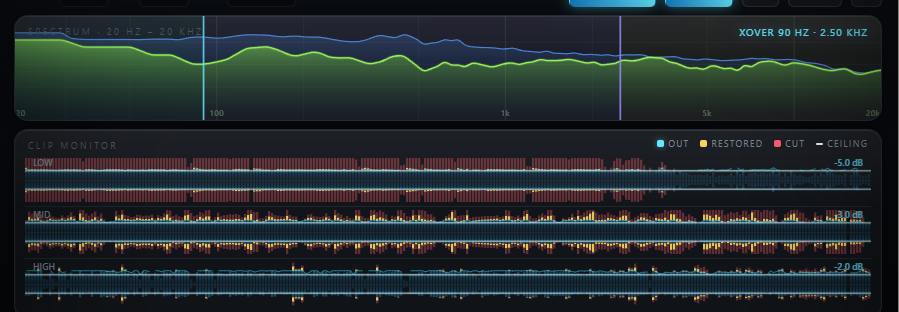
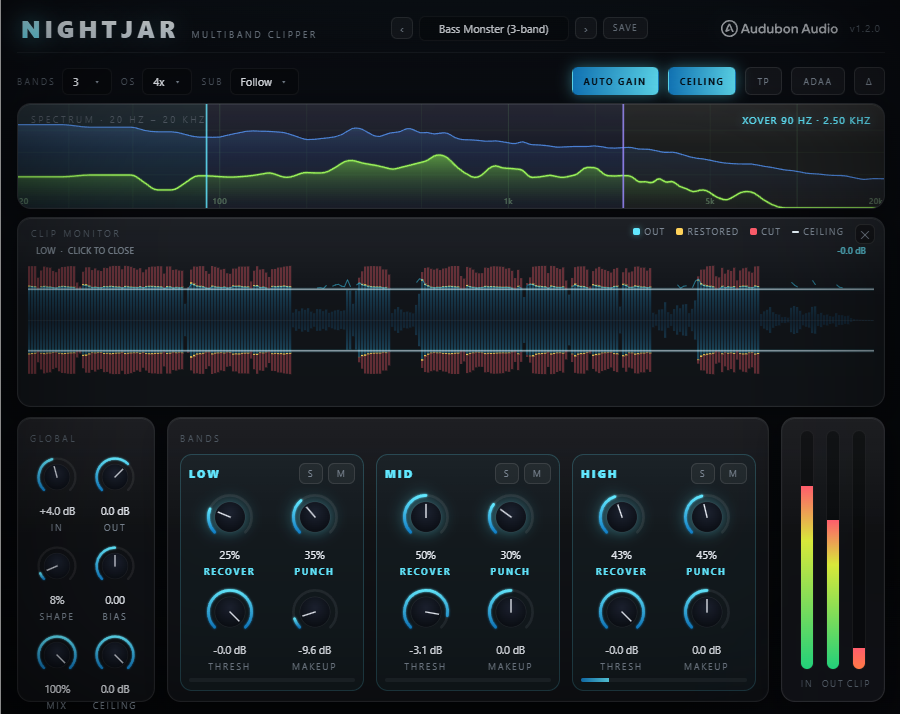
A live Clip Monitor shows exactly what's being cut and restored per band; a full-width spectrum analyser lets you drag the crossover handles directly to set the band splits.

Everything from the crossover through the per-band clipping runs inside the oversampled domain, so clip harmonics are band-limited and never alias. The dry path is latency- and phase-compensated, so intermediate Mix settings never comb around the crossover frequencies.

Nightjar full plugin UI
Plugin · full interface
02 — The Engine

A detector that only fires on attacks.

A level-independent dual-envelope detector — the gap between a fast and a slow envelope — drives both Punch and Recover, so sustained, already-loud material isn't touched by either.

Nightjar spectrum analyser and per-band Clip Monitor
Punch

A transient-aware ceiling lift inside the oversampled clip. The leading edge punches through, then the wall clamps back down — restoring impact and slam.

Recover

Parallel peak re-injection after the clip — the difference between input and clipped output is added back, scaled by the transient detector. Restores click and crest.

Oversampled Throughout

Crossover, clipping, Punch and Recover all run inside the oversampled domain — clip harmonics stay band-limited and alias-free.

Phase-Matched Dry

In 2/3-band mode, the dry path runs through allpasses matching the crossover's phase rotation — no comb filtering at any Mix setting.

03 — Per-Band Control

One to three bands. Full control on each.

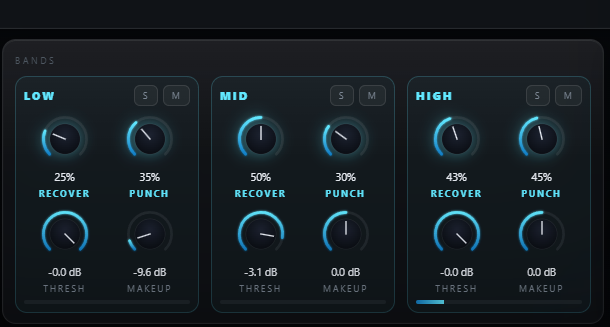
1 band bypasses the crossover entirely and is bit-transparent for its filtering; 2 and 3 bands split with X-Low and X-High, draggable straight from the spectrum display.

Th
Threshold

Each band's clip ceiling — the core control over how hard that band gets driven.
Per band×3
Pu
Punch

Independent per band, so a kick band can punch hard while a sub band stays glued.

Per band×3
Re
Recover

Independent per band — dial in exactly how much click comes back on each part of the spectrum.

Per band×3
Mk
Makeup

Per-band gain to balance levels between bands before they sum.

Per band×3
S
Solo

Audition any single band in isolation while you dial it in.

Per band×3
M
Mute

Drop any band entirely to hear what the rest are doing.

Per band×3
04 — Shape, Bias & Crossovers

Draw the knee. Draw the split.

Nightjar crossover handles dragged directly on the spectrum
A — Shape
Hard ↔ Soft Knee

Morphs the clip character from a hard brickwall to a fully soft knee, applied globally across every active band.

B — Bias
Asymmetry for Even Harmonics

Renormalised so the louder rail always lands exactly on the band's Threshold — bit-transparent at Bias 0, with a ~4 Hz DC guard removing the drift asymmetric clipping creates.

C — Drag the Crossovers
X-Low / X-High on the Spectrum

Drag the handles directly on the full-width spectrum analyser to set the band splits — they stay in sync with the X-Low/X-High knobs, with active bands shaded behind the curve.

05 — Ceiling & Delta Listen

Optional safety net. Honest monitoring.

Nightjar Ceiling and True Peak controls
A — Ceiling
Output Ceiling, On by Default

A final output ceiling guarantees the peak after everything else. On by default, since it's the last line of defense against overs.

B — True Peak
Optional, Off by Default

A 4× true-peak (ISP) mode is available for delivery specs that require it — off by default, since it trades away loudness that most bass-music workflows want to keep.

C — Delta Listen
Hear Exactly What Changed

Monitors dry minus wet, scaled by Mix, so it always equals bypass minus output — you hear exactly what the clipper is removing or adding, nothing more.

06 — Global Controls

Six controls run the whole clipper.

Input and Output bracket the process; Mix, Oversample, and Auto-Gain round it out.

Nightjar full control layout
Input
Drive

How hard the signal is pushed into the ceiling before it's clipped.

Mix
0 → 100 %

Parallel dry/wet blend for the clipping, phase-matched across bands.

Auto-Gain
On / Off

Compensates the input drive so loudness stays roughly matched as you push Input harder. On by default — approximate, not a loudness meter match.

Output
Make-up gain

Final trim after the ceiling, for level-matched comparisons against bypass.

Oversample
Off / 2× / 4× / 8× / 16×

Linear-phase FIR oversampling for the whole clip path — higher settings keep the hardest clipping alias-free.
07 — Workflow

From insert to loud, in six moves.

Nightjar full plugin UI Nightjar per-band controls
01
Insert Nightjar on a bass bus or master, and start from a factory preset like Kick Slam or Bass Monster.
02
Choose 1, 2, or 3 Bands and drag the crossover handles on the spectrum to split where the material needs it.
03
Raise Threshold per band until you're clipping the amount you want, then bring Punch up to restore the impact.
04
Add Recover for click and crest, and use Solo/Mute to check each band in isolation.
05
Dial Shape toward soft if it's too aggressive, and add Bias for even-harmonic warmth if the track wants it.
06
Flip on Δ Delta Listen to hear exactly what's being added, balance with Mix, and trim Output to match bypass level.
08 — Specifications

Everything, on one page.

Format
VST3
Category
Fx · Dynamics / Distortion
Platform
Windows 10 / 11 · macOS 10.13+ (Universal — Apple Silicon & Intel) · 64-bit
Version
1.3.0
Bands
1 – 3, LR4 crossover, X-Low/X-High draggable on spectrum
Per-band
Threshold · Recover · Punch · Makeup · Solo · Mute (×3)
Global shaping
Shape (hard↔soft knee) · Bias (even-harmonic, DC-guarded)
Oversampling
Off · 2× · 4× · 8× · 16×, linear-phase FIR
Ceiling
On by default · optional 4× True Peak, off by default
Auto-Gain
On by default, approximate drive compensation
Delta Listen
Δ monitors dry − wet, scaled by Mix
Factory presets
Init/Transparent · Kick Slam · Sub Glue · Bass Monster · Master Loudness · Transient Snap
Dry path
Latency- and phase-compensated, no comb filtering across Mix
State save
Full settings and presets saved with DAW project
09 — Fine Print

Documentation.

DAW
Any VST3-compatible host — Ableton Live 11+, FL Studio 20+, Reaper, Cubase, Studio One, Bitwig, and others. VST3 only — Logic Pro and GarageBand load Audio Units, not VST3, so they are not supported.
Operating System
Windows 10 or 11 (64-bit) — the editor uses WebView2, which is built into Windows 11 and most current Windows 10 installs. macOS 10.13 High Sierra or later — one Universal build runs natively on both Apple Silicon and Intel Macs.
Format
VST3 effect. Insert on a bass bus, drum bus, or master where you need loudness without losing punch.
Latency
Zero at Oversample Off. Higher oversampling settings add a reported linear-phase FIR latency your host compensates for automatically.
Recommended Setup
Start from the Kick Slam or Sub Glue factory preset, then adjust Threshold, Punch, and Recover per band to taste for your material.
Updates
Current release 1.3.0. Free updates for all future 1.x releases.
v1.3.0 — Update check, from the logo
The Audubon Audio wordmark in Nightjar’s header is now a button. Click it and Nightjar asks audubonaudio.com one question — which build is current — then shows that number beside the one you are running, with a link straight to the members area if there is something newer and a plain “you have the current version” if there is not. If it cannot reach us it says so rather than claiming you are up to date. This is the only moment Nightjar touches the internet, it happens only on that click, and nothing about you goes with it — no serial, no licence, no machine id, not even your version or operating system. The comparison happens on your own machine.
v1.0.0 — Initial Release
First public release. 1–3 band oversampled clipper with Punch (transient-aware ceiling lift) and Recover (parallel peak re-injection) per band, Shape and Bias global shaping, draggable crossover handles, output Ceiling with optional True Peak, Auto-Gain, Delta Listen, and six factory presets.
Full User Guide
Step-by-step walkthrough of Punch, Recover, per-band control, Shape/Bias, Ceiling, and workflow recipes for loud, punchy bass.
Open User Guide →
Personal & Commercial Use
Use Nightjar in any project — music production, mixing, sound design, post-production, broadcast, and live performance. No royalties, no project restrictions.
Single User
One license per user. Install on the computers you personally own or operate.
Serial Activation
Your license includes a unique serial number tied to your email. Your serial and download are permanently accessible in your Members Area.
Free Updates
All 1.x updates are free. Your serial activates the current version and all future updates in the 1.x line.
No Redistribution
The plugin binaries may not be shared, resold, or redistributed. Each user must obtain their own license.
N
Nightjar Multiband Clipper · VST3
$29