What Nightjar does: Nightjar is a multiband clipper built for heavy bass music. It clips for loudness like a top-tier oversampled clipper — soft/hard morph, asymmetry, optional true-peak ceiling — but its signature is restoring the transients and dynamics that clipping normally destroys. Punch lifts the ceiling on the leading edge of a transient before the wall clamps back; Recover re-injects the peak afterward in parallel. Both are gated so they only act on attacks, keeping the body clipped and loud.
Interface Overview
1
Transfer Curve & Spectrum
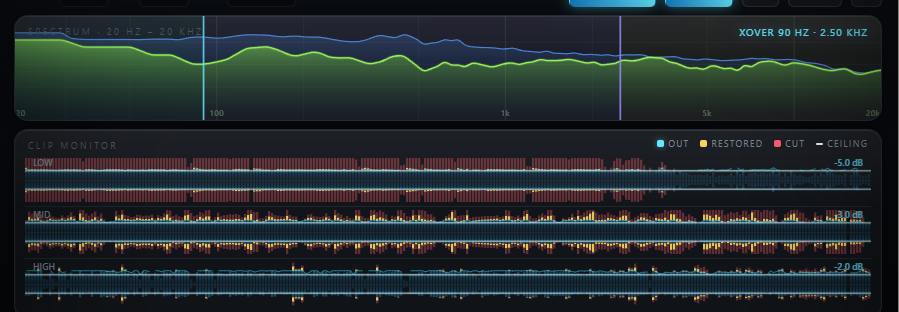
The top-left display shows the live clip shape and where the signal is currently hitting it. The full-width spectrum analyser shows the input, with active bands shaded behind the curve.
2
Bands & Crossovers
Choose how many bands to split the signal into, and drag the crossover handles directly on the spectrum.
Bands
1 / 2 / 3
1 band bypasses the crossover entirely — bit-transparent for its filtering.
X-Low / X-High
Draggable
Set the crossover points by dragging directly on the spectrum, or with the knobs — they stay in sync.
3
Per-Band Controls
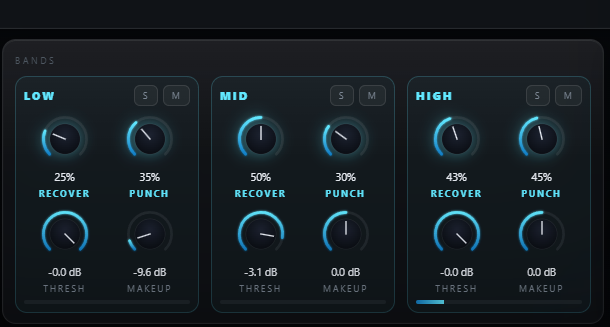
Each of the up-to-3 bands has its own set of six controls.
Threshold
Per band
That band's clip ceiling.
Punch
Per band
Transient-aware ceiling lift — restores impact and slam.
Recover
Per band
Parallel peak re-injection — restores click and crest.
Makeup / Solo / Mute
Per band
Balance levels, audition, or drop any band while you work.
4
Shape & Bias
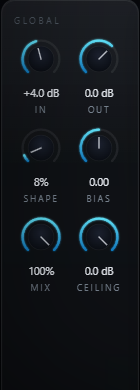
Two global controls that shape the clip character across every active band.
Shape
Hard ↔ Soft
Morphs the knee from a hard brickwall to a fully soft clip.
Bias
Asymmetry
Adds even-harmonic character. Bit-transparent at 0, DC-guarded otherwise so it never drifts.
5
Ceiling, Auto-Gain & Delta Listen
The finishing controls, plus a monitoring tool for honest A/B comparisons.
Ceiling
On by default
Final output ceiling. An optional True Peak (4×) mode is available but off by default — it trades away loudness.
Auto-Gain
On by default
Compensates the Input drive so loudness stays roughly matched. Approximate, not a loudness match.
Δ Delta Listen
Off by default
Monitors dry minus wet, scaled by Mix — hear exactly what the clipper is adding or removing.
Input / Output / Mix
Global
Drive into the ceiling, final trim, and the dry/wet parallel blend.

Typical Workflow
A
Start from a Preset
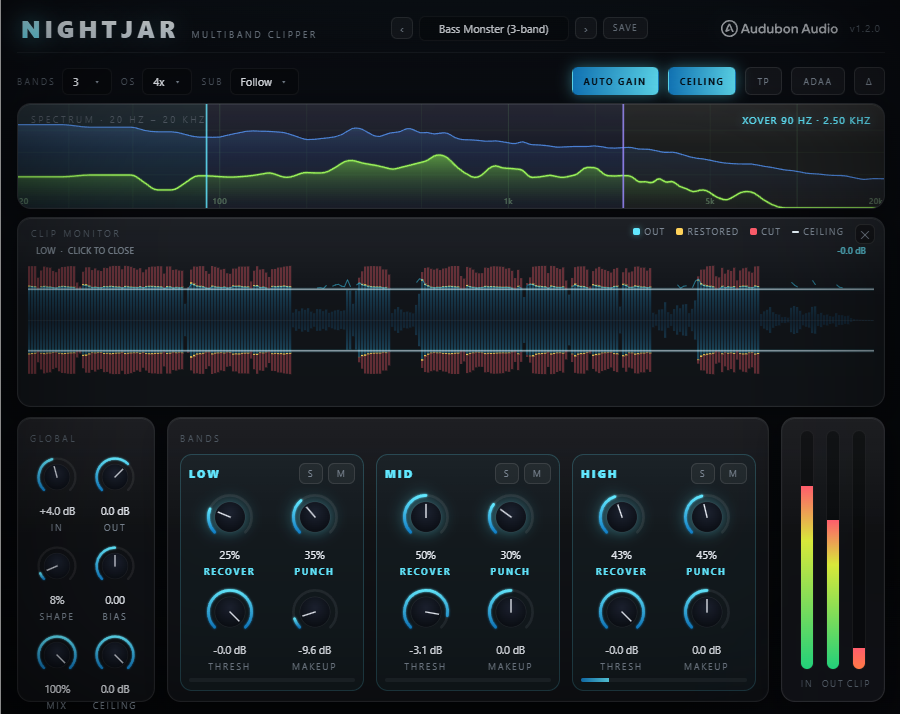
Insert Nightjar on a bass bus or master and load a factory preset — Kick Slam or Bass Monster are good starting points depending on your material.
B
Split and Set Thresholds
Choose Bands and drag the crossover handles to split where the material needs it, then raise Threshold per band until you're clipping the amount you want.
C
Restore the Transients
Bring up Punch to restore impact and Recover for click and crest. Use Solo to check each band on its own.
D
Check with Delta Listen and Finish
Flip on Δ Delta Listen to hear exactly what's being added or removed. Adjust Shape and Bias to taste, balance with Mix, and trim Output to match bypass level.