Magpie Project Librarian
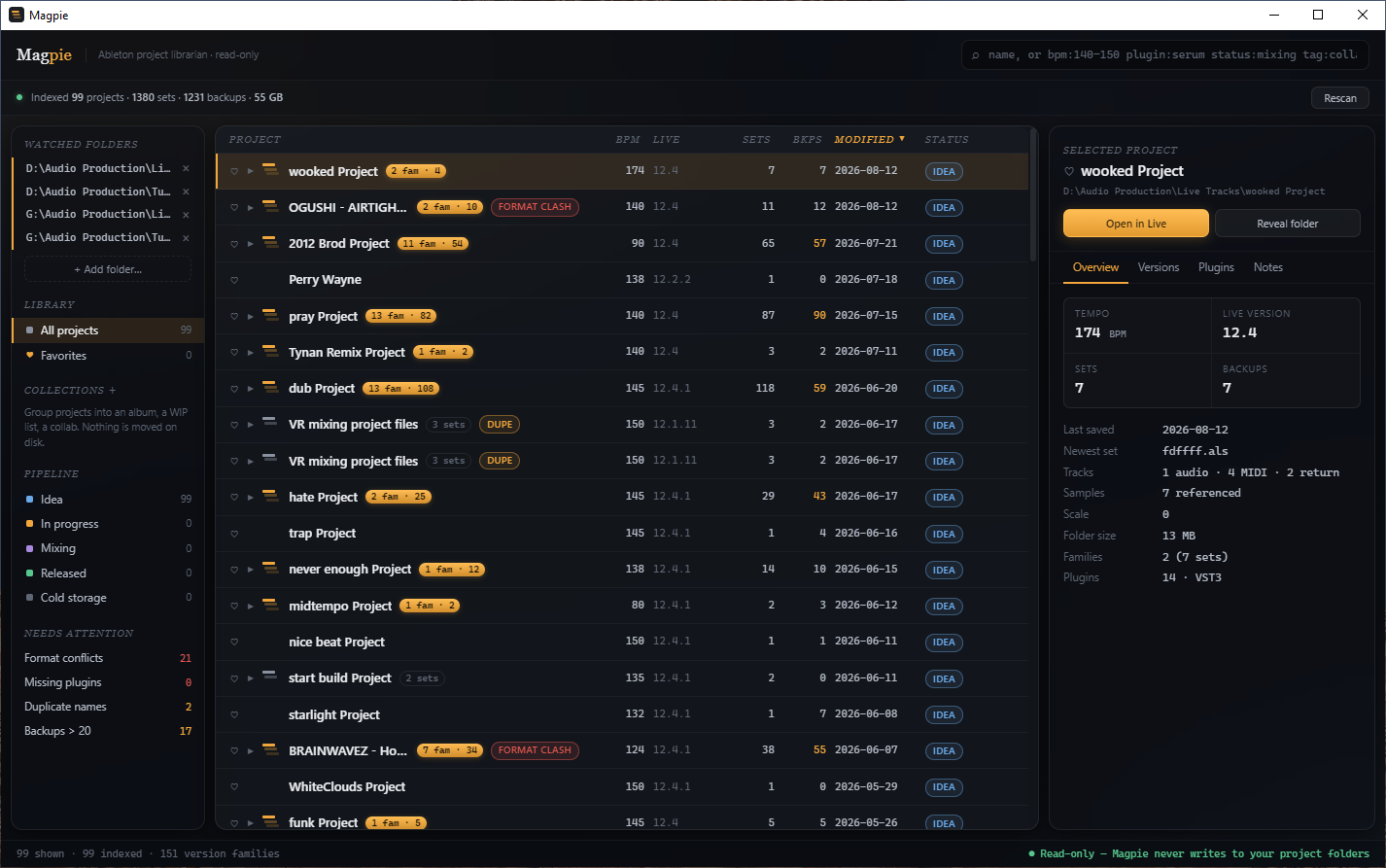
Magpie indexes every Ableton Live project you point it at and turns the pile into one searchable list — tempo, Live version, plugins, track counts, backups, version history and your own notes, all read straight out of the set files. It is strictly read-only: it never writes, moves, renames or deletes anything inside a folder you give it. This guide covers installation, the first scan, the full search syntax, version families and manual regrouping, collections and the pipeline, the one-press update check, and five practical workflows.
Index every Ableton project you own and get one searchable view of tempo, plugins, version history, backups and notes. Reads Live 8 through 12 and never writes to a single file. · Watch on YouTube ↗
Install it
Magpie is free with an Audubon member account. Sign in, pick your platform on the product page, and the download starts. Both builds also sit permanently in your Members Area.
- macOS — open the .dmg and drag Magpie to Applications. That is the whole install. The Mac build is signed with our Developer ID and notarized by Apple, so it opens without warnings and without asking for your password.
- Windows — run the .exe installer. It installs per-user, so there is no UAC prompt. The Windows build is not yet code-signed, so SmartScreen will show "Windows protected your PC" — click More info → Run anyway. To skip the warning entirely, right-click the downloaded file → Properties → tick Unblock before running.
There is no serial, no activation and no online check. Nothing to enter, and nothing to lose.
Point it at your project folders
On first launch the library is empty. Click + Add folder… at the top of the sidebar and choose a folder that contains your projects — not an individual project. Magpie walks the whole tree beneath it, so one entry usually covers a drive's worth of work.
- Add as many as you like. Internal drive, external, a NAS, three of each. Watched folders are listed in the sidebar under Watched folders.
- Anything is safe to add. Archive drives, a collaborator's folder, a backup you have not opened since 2019. Worst case it finds nothing — it cannot damage what it reads.
- To stop watching one, hover it in the sidebar and click the ×. That removes it from the library; it does not touch a single file on disk.
A project, to Magpie, is any folder containing at least one .als file. Ableton's own Backup/ subfolders are counted but not parsed, so backups show up as a number rather than flooding the list.
The first scan
Adding a folder starts a scan immediately. An .als is gzipped XML, so Magpie is decompressing and parsing every set you own — the first pass over a large library is the slow one. A real 465 GB library (3,948 sets across 984 projects) takes about fifteen minutes. Every launch after that is fast.
- The list fills in while it runs. Results are committed folder by folder, so you can start searching before the scan finishes.
- It is interruptible. Close the window or stop the scan and everything already read is kept. Magpie deliberately does not prune after a partial scan, so folders it never reached stay in the library rather than being treated as deleted.
- Rescans are incremental. Press Rescan after a session and only sets whose modification time changed are re-parsed — a rescan of an unchanged library takes a fraction of a second.
- Nothing fails silently. Any file it could not read appears in the sidebar under Could not read, with the filename and the reason. Hover for the full list.
The status line at the top shows the totals as they grow: projects indexed, sets, backups counted, and gigabytes covered.
Reading the list
The middle column is one sortable table, and it is the same table in every view. Click a column header to sort by it; click again to reverse. Text sorts ascending first, numbers and dates descending first — the useful default for Modified is almost always "what did I touch last", which is where Magpie starts.
- Project — folder name. Hover for the full path.
- BPM — tempo, read from the set. Live 9 and up store it one way, Live 8 another; both are handled, so an old set reports its real tempo instead of a blank.
- Live — the version the newest set was made in, sorted numerically so 9.x comes before 12.x rather than lexically after it.
- Sets — how many
.alsfiles the project folder holds. - Bkps — how many files are in its
Backup/folder. Anything over 20 is highlighted. - Modified — the newest set save, or the folder's own timestamp if that is later.
- Status — your pipeline stage for the project (see step 08).
Rows carry badges where they matter: format clash when a project loads the same plugin in two different formats, dupe when another project shares its name, and a family count like 2 fam · 8 when the folder holds more than one set. Click the triangle on any multi-set row to expand it.
Version families
Nobody names project versions tidily, so Magpie reads the habit rather than demanding you fix it. song1, song2, song3 collapse into one expandable stack, newest save first, with the most recent marked NEWEST.
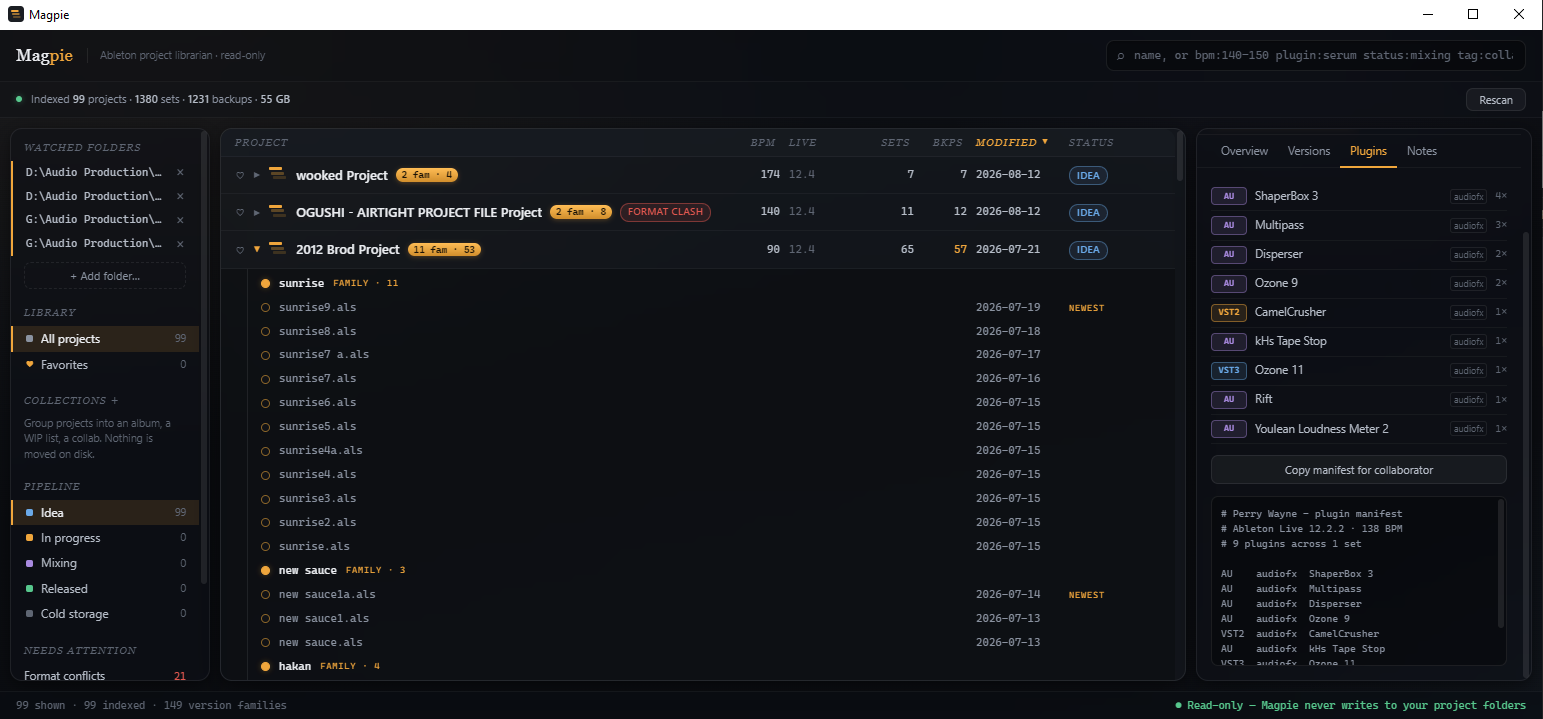
Version markers it understands: trailing numbers (song2, song 12), lone letters (song a), digit-and-letter (song 6b), v-prefixes (v3), parenthetical copies (song (2)), and words like final, master and copy.
A second pass folds longer names into the shorter one they extend — Cybernetic Duck 4 basses match joins Cybernetic Duck — but only when the shorter set actually exists in the same folder. It is deliberately conservative: a version scribble merges, while bassline never disappears into bass.
When the rules guess wrong, fix it by hand. Drag any set onto another family's header to pin it there, or onto the loose sets below to pull it out on its own. Manual placement is stored per file and applied after the automatic passes, so it always wins — and it survives rescans, restarts and rule changes.
Any project with more than one set expands, whether or not the names group into a family. A folder holding three differently-named songs still lists all three.
Search
The search box at the top filters the list as you type. Plain words match the project name, its path, your notes, your tags and any plugin it uses — so typing serum finds every project with Serum in it, even if the word never appears in a filename. They also match the sets inside a project and the version families those sets group into, so a set called toesucker.als is findable even when the folder holding it is called something else entirely.
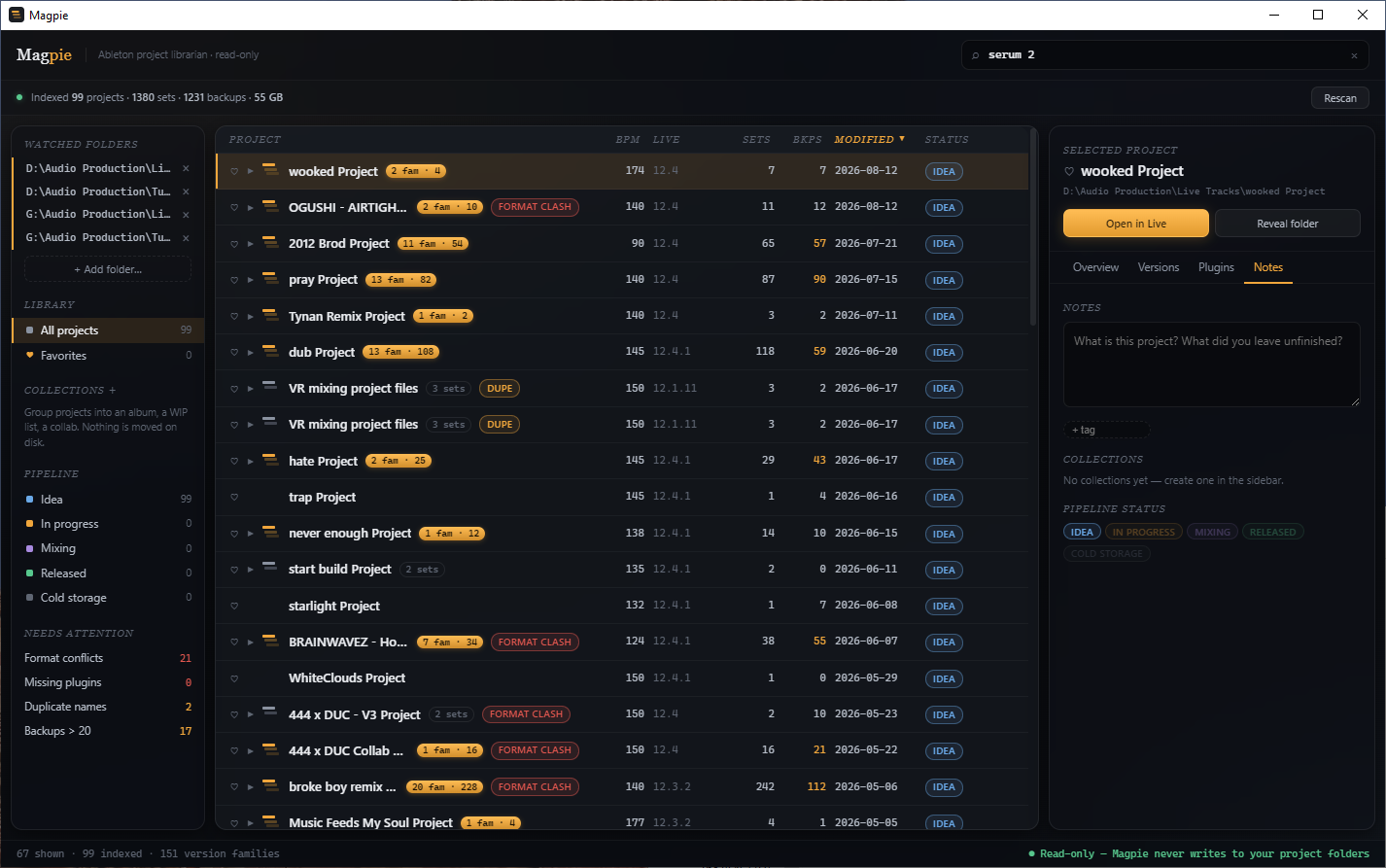
Prefixes narrow it to one field:
bpm:140— that tempo, within half a BPM.bpm:140-150for a range.plugin:serum— projects using a plugin whose name contains "serum".format:vst3— projects containing a plugin in that format. Alsovst2andau.live:12— sets made in Live 12.anything.live:12.4narrows further.status:mixing— pipeline stage. Usestatus:progressfor In progress andstatus:coldfor Cold storage.tag:collab— one of your own tags.
Terms stack. Every term must match, so bpm:140-150 plugin:serum status:mixing means all three at once. Mix prefixes with free text freely: bpm:174 vocal finds the 174 projects with "vocal" somewhere in the name, path, notes, tags or plugin list.
Matches are marked. Whatever you typed is highlighted in the name it was found in — the project, the family, or the set. When the hit is inside a project rather than in its folder name, that row opens by itself so you can see which set matched; clear the search, or click the caret, and it closes again.
Search runs on top of whichever view you are in, so you can search inside a single collection or inside Favorites. The status bar shows how many projects survived the filter.
The detail panel
Click any row and the right-hand panel fills with everything Magpie knows about it. Two buttons sit at the top: Open in Live hands the newest set to Ableton and gets out of the way, and Reveal folder opens the project in Explorer or Finder. Below them are four tabs.
- Overview — tempo, Live version, set and backup counts, last save date, the newest set's filename, audio/MIDI/return track counts, how many samples the set references, folder size, and how many families and plugins it holds.
- Versions — the full version history for the project, grouped into families.
- Plugins — every plugin the project uses, with format, vendor, whether it is an instrument or an effect, and how many instances. Anything Live itself flagged as missing is marked, so a project that will open with holes in it says so before you open it.
- Notes — your own notes, tags, collection membership and pipeline status for this project.
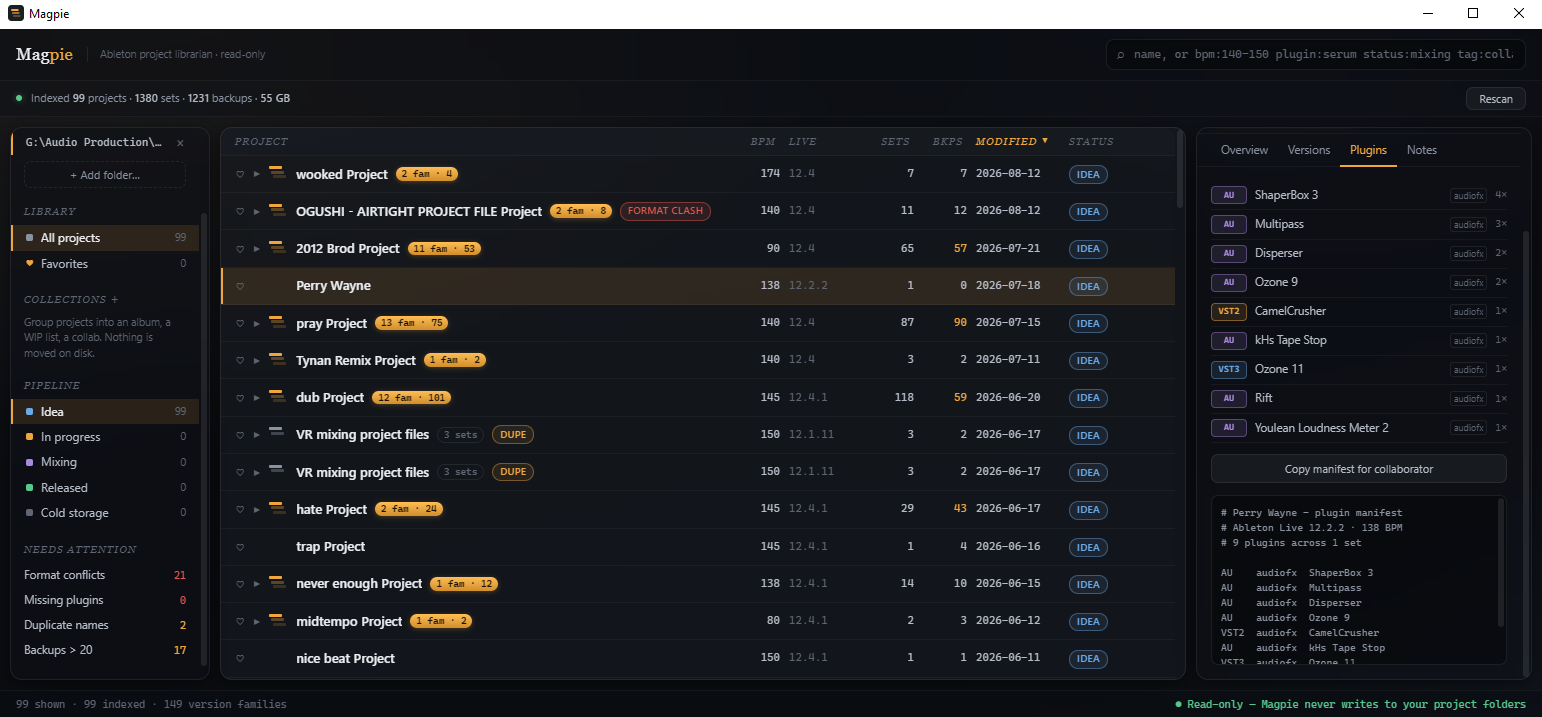
Copy manifest for collaborator sits under the plugin list. It puts a plain-text summary on your clipboard — project name, Live version, tempo, set count, then every plugin with its format and vendor, anything missing marked, and a final section listing format mismatches. Paste it into a message and whoever is opening the project knows what they need before they try.
Collections, favorites, status and notes
Everything above is read off disk. This is what you add on top — and none of it moves a file.
- Favorites — a heart on every row, and a Favorites view in the sidebar. For the fifteen projects you actually return to.
- Collections — your own folders, nestable as deep as you like: Releases → Album One, WIP, Collab. Create one with the + beside the Collections heading, or add a subfolder from any existing collection. A parent shows everything in its children.
- Status — five pipeline stages on the Notes tab: Idea, In progress, Mixing, Released, Cold storage. The sidebar counts how many projects sit in each and clicking one filters to it.
- Notes and tags — per project, free text and as many tags as you like. Both are searchable.
Collections are virtual. Magpie never creates a directory or moves a file — a collection is a named list of project paths. So one "album" can span three drives, a project can sit in several collections at once, and deleting a collection deletes nothing but the list.
Needs attention
The bottom of the sidebar carries four standing filters, each with a live count. Click one to show only those projects; click it again to clear.
- Format conflicts — the project loads the same plugin in two different formats. This is the collaboration case: an AU instance from a Mac collaborator will not load on Windows, and VST2 is not interchangeable with VST3.
- Missing plugins — Live's own flag that a device could not be found. These projects will open with holes in them.
- Duplicate names — two or more projects share a folder name. Usually a copy you made on another drive and forgot about.
- Backups > 20 — projects whose
Backup/folder has grown large. Ableton never cleans these up, and they are usually the easiest space to reclaim.
Where your data lives
Magpie writes exactly two files, both in the OS user-data directory, well away from your projects.
library.json— the watched folders and the scanned index. Disposable; rebuilt from disk on every scan.meta.json— your status, notes, tags, favorites and collections. Precious, keyed by folder path, and never touched by a scan.
That separation is the point: re-indexing from scratch cannot lose anything you typed. Both files are written to a temporary file and then renamed, so an interrupted write cannot truncate the real one. If you back up one thing, back up meta.json.
Because meta.json is keyed by folder path, moving a drive or changing a drive letter will orphan your notes for those projects. Re-add the folder at its new location, then move the notes over — or keep the drive letter stable, which is the easier answer.
Checking for updates
The status bar shows the version you are running, and beside it a Check for updates button. That button is the only thing in Magpie that touches the internet.
Press it and a dialog appears before anything happens, restating what the app is about to do: Magpie does not connect to the internet for any other purpose, it has no account, no analytics and no telemetry, and it never sends anything about you, your projects or your library. Accept, and it asks one question — what is the current version of Magpie? — with nothing attached. Not your version, not your platform, not a single project name. The comparison happens on your machine.
You get one of three answers, each naming both numbers so nothing is left to guess:
- An update is available — the version you have and the version that exists, plus a button that opens the members area, where the download lives.
- Up to date — the same two numbers, matching.
- Could not reach the update server — you are offline, or our end is down. It never tells you that you are up to date when it could not find out.
None of this is automatic. There is no check on launch, no timer, no background poll, and the dialog cannot be turned off — a promise about not phoning home is worth repeating every single time. Never press the button and Magpie never opens a connection.
Find the one you're thinking of
You remember it was around 140, you remember using Serum, and you are fairly sure it is on the old drive. What you do not remember is what you called it. Type bpm:135-145 plugin:serum — that is usually a list short enough to recognise on sight. Add a word you might have used in the name, or sort by Modified and look at the period it would have been. Click through the shortlist and read the Overview tab; the track count and Live version normally settle it.
Hand a project to a collaborator
Before you zip anything, select the project and open the Plugins tab. Check for missing devices and for a format clash badge on the row — a plugin loaded as both VST2 and VST3, or an AU that will not open on a Windows machine at all. Fix what you can in Live, then hit Copy manifest for collaborator and paste the result into your message. They will know what they need before they open it, rather than an hour later.
Build an album out of three drives
Create a collection called Album One, then add subfolders under it — Confirmed, Maybe, Interludes. Search or sort your way to each candidate and add it from the Notes tab. The projects stay exactly where they are on disk; the collection is only a list of paths, so a track on an archive drive and a track on your internal sit side by side. Set each one's status as it moves — Mixing, then Released — and the sidebar becomes a progress readout for the record.
Reclaim space on a full drive
Click Backups > 20 in the sidebar and sort by folder size on the Overview tab as you click through. Ableton never prunes its own Backup/ folders, so a project you finished in 2021 may be carrying two hundred of them. Use Reveal folder to open each one and clear the backups yourself — Magpie will not do it for you, by design. Rescan afterwards and the counts update. Mark the projects you are done with as Cold storage so they drop out of your working views.
Bring an old archive drive back into the fold
Plug it in, add its projects folder as a watched folder, and let the scan run — it is safe on anything, since Magpie only reads. When it finishes, sort by Live to see how far back the archive goes, and check Missing plugins to find out which of those projects will still open on your current setup. Anything from Live 8 or 9 reports its real tempo and plugin list even though the XML layout is completely different from a modern set. Tag the ones worth reviving and give them a status so they stop being an undifferentiated pile.