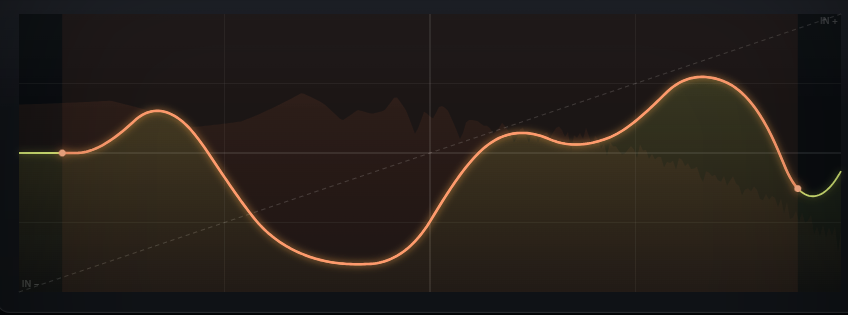
What Warbler does: Warbler is a waveshaper whose distortion curve is a 512-point table you draw yourself. The input runs −1…+1 across the plot, the drawn value is read as the output, and the default identity ramp is a straight diagonal — clean and transparent until you draw over it. A Sub split keeps everything below a chosen frequency dry, so the curve can get as wild as you like without losing the low end.
Interface Overview
1
The Transfer Curve
The hero display is the curve itself — click and drag anywhere on it to draw. The readout above shows the current Drive and Mix.
Draw
Click + drag
Freehand drawing on the plot rewrites the 512-point transfer table directly, live.
Readout
Drive · Mix
A quick glance at the two controls that most affect what you hear right now.
2
Draw Tools & History
Four chips above the curve reshape the whole table in one click; two more step through your last five generations.
BR
Brown walk
A bounded random walk redraws the whole curve — wild and unpredictable.
SN
Smooth noise
A slewed, softer random curve — more musical than the brown walk.
FLIP
Invert
Flips the curve vertically (output → −output).
RESET
Identity
Back to the clean diagonal in one click.

3
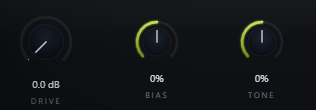
Drive & Bias
Drive pushes the signal into the curve; Bias offsets it before the lookup for asymmetric, even-harmonic character.
Drive
0 – 36 dB
Input gain into the drawn curve — 0 dB reads the table at unity.
Bias
−100 to 100%
Pre-shape offset that reads the curve asymmetrically. DC-blocked, transparent at 0.
4
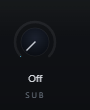
Sub Split
Keeps the low end out of the curve entirely — off by default disables the split for full-band shaping.
Sub
Off, 20 – 320 Hz
Everything below this frequency bypasses the curve and stays dry. Off turns the split off entirely.
5
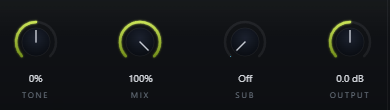
Tone, Mix & Output
Tone shapes what comes out of the curve; Mix and Output finish the blend.
Tone
−100 to 100%
A gentle post tilt, dark ↔ bright, on the harmonics the curve generates.
Mix
0 – 100%
Parallel dry/wet blend.
Output
−24 to 24 dB
Final trim for level-matched A/B against bypass.
6
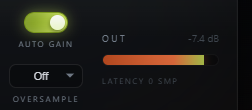
Auto Gain & Oversampling
Auto Gain keeps loudness steady while you push Drive; Oversampling is there for the hardest drawn curves.
Auto Gain
On / Off
On by default — compensates the wet path for Drive so it changes character, not just level.
Oversample
Off / 2× / 4× / 8×
Off by default (zero latency). Latency is reported honestly to the host when engaged.
Typical Workflow
A
Start From a Preset or a Blank Curve
Pick one of the 14 factory presets from the preset bar, or hit RESET for a clean identity diagonal and draw your own from scratch.
B
Draw, Randomize, Undo
Click and drag on the curve, or try BR / SN for a random shape. Use the ‹ › chips to step back through your last five generations if a change didn't land.
C
Protect the Low End
Set Sub just above your track's fundamental so the curve only shapes the harmonics above it — leave it at Off if you want the whole signal drawn through.
D
Dial In and Finish
Raise Drive and add Bias for asymmetry, tilt Tone to taste, balance with Mix, and trim Output. Reach for Oversampling only on the most aggressive drawn curves at high Drive.