Video Walkthrough
A tempo-synced volume LFO with five shapes, triplet/dotted feel, stereo offset and free-rate sweeps. · Watch on YouTube ↗
What Hummingbird does: Hummingbird applies a low-frequency oscillator (LFO) to the volume of whatever you put it on. Choose one of five waveform shapes, run it free or locked to your project tempo with triplet/dotted feel, and shape the result with depth, per-cycle smoothing, stereo phase offset, and a dry/wet mix. The same engine covers gentle tremolo, hard gating, rhythmic chopping, and glitchy stutter — and a live visualizer shows the motion as it happens.
Interface Overview
1
LFO Visualizer
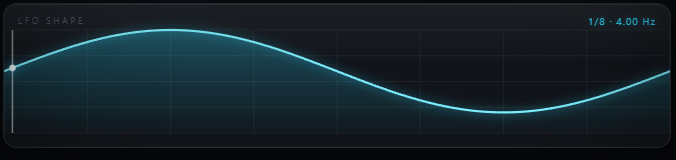
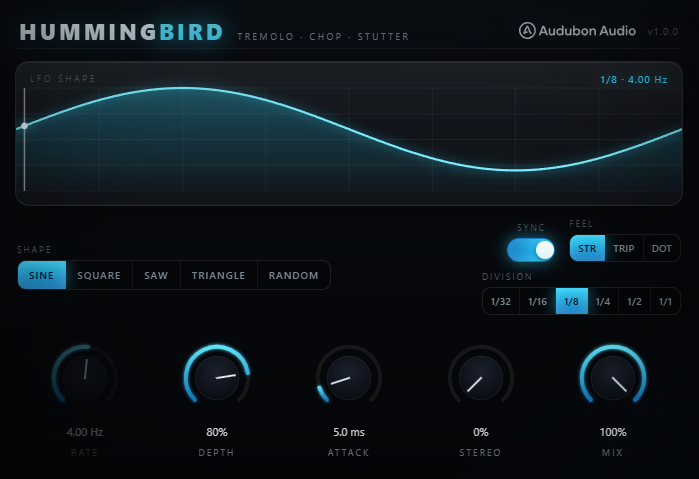
The display at the top draws the current waveform with a moving playhead that tracks the LFO's position in real time. The height of the trace reflects your Depth setting. When Stereo is above zero, a second blue trace appears, showing the right channel's phase offset against the left. Watch it to see exactly how the modulation is moving while you set shape, rate, and depth.
2
Shape Selector
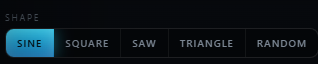
Pick the waveform the LFO uses to modulate volume. Each shape gives the motion a distinct character — one click switches between them.
Sine
Smooth
Rounded rise and fall — classic amp-style tremolo with no hard edges.
Square
On / Off
Full on, full off. At high depth this is a hard gate or chop — the basis of trance gates and stutter edits.
Saw
Ramp
A sharp drop then a ramp back up. With a little Attack it becomes a rhythmic swell that pumps once per cycle.
Triangle
Linear
Even up-and-down motion — like sine but more mechanical, steady pulsing without rounded peaks.
Random
Sample & Hold
The level jumps to a new random value each cycle — glitchy and unpredictable, great for IDM and broken textures.
3
Rate, BPM Sync, Division & Feel
Hummingbird's speed can run free or lock to your host tempo. The Rate knob and the sync controls work together.
BPM Sync
On / Off
When on, the LFO rate locks to your project tempo and transport and stays in time as the song plays. When off, Rate runs free in Hz.
Division
1/32 to 1/1
The note value the LFO cycles on when synced — from a frantic 1/32 stutter to a slow 1/1 whole-note swell.
Feel
Straight / Triplet / Dotted
Applies a triplet or dotted feel to the chosen division for swung, shuffled, or off-grid rhythms.
Rate (free)
0.1 Hz to 20 Hz
The LFO speed in free mode. Double-click to type a Hz value — or a note division like
1/8, 1/16t, or 1/4. and Hummingbird converts it to Hz at the current tempo.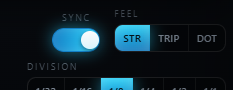
4
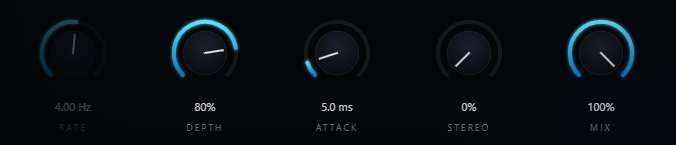
The Knob Row
The knobs control intensity, edges, width, and blend. Drag a knob vertically to change it, and double-click any knob to type an exact value.
Rate
0.1 Hz to 20 Hz
LFO speed in free mode. When BPM Sync is on, the Division selector sets the rate instead.
Depth
0% to 100%
How far the volume swings each cycle. Low for a gentle shimmer; 100% for a full on/off gate. The biggest control over how aggressive the effect feels.
Attack
0 ms to 50 ms
Per-cycle smoothing. Zero keeps the shape's hard edges; raise it to round square and saw clicks into clickless swells without losing the timing.
Stereo
0% to 100%
Phase offset between the left and right LFOs. Zero is mono tremolo; higher values widen into a panning, rotating motion across the stereo field.
Mix
0% to 100%
Dry/wet balance. At 100% only the modulated signal is heard; pull back to blend the effect under the original level.
Typical Workflow
A
Insert and Sync to Tempo
Drop Hummingbird on any channel where you want rhythmic volume motion — a pad, a vocal, a synth, or a drum bus. Turn on BPM Sync so the flutter locks to your project tempo, then pick a Division.
1/8 or 1/16 is a reliable starting groove.
B
Choose a Shape and Set Depth
Select a Shape for the character you're after — Sine for smooth tremolo, Square for a hard gate, Random for glitch — and watch the visualizer to see the motion. Then bring up Depth: subtle at low values for a shimmer, near 100% for a full chop.
Square + high Depth gives you a classic gate; Sine + medium Depth is vintage tremolo.
C
Shape the Feel and Smooth the Edges
If you want the motion to swing or sit off the straight grid, switch Feel to Triplet or Dotted. Then add a touch of Attack to round off any clicks on square or saw shapes — a few milliseconds keeps the rhythm tight while removing the hard transient.
Saw + Attack 5–15 ms gives a rhythmic swell that pumps once per beat.
D
Add Width and Balance with Mix
Raise Stereo for a wide, panning flutter — above 50% the modulation rotates between the speakers for an auto-pan effect. Finally use Mix to balance the effect against the dry signal: full at 100% for hard chopping, pulled back for a subtler tremolo that keeps some steady level underneath. Try automating the Rate knob to create accelerando or ritardando flutter builds.