What Crane does: Crane is a band-split harmonic enhancer built for bass. It splits your signal at a crossover frequency — the low band feeds a Chebyshev harmonic generator that synthesizes rich added harmonics, while the high band passes through untouched. The two bands are then summed back together, keeping your transients and top-end clarity intact.
Interface Overview
1
Spectrum Display
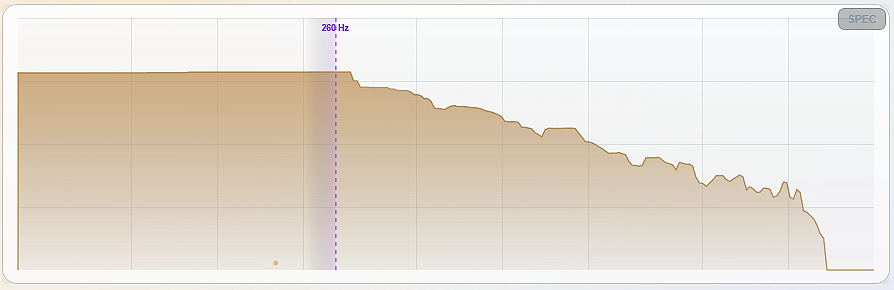
The large display at the top shows Crane's output as a real-time frequency spectrum from 20 Hz to 1 kHz — a live trace (green) with a peak-hold line (blue) behind it. Use it to see exactly how much harmonic content Crane is adding and where. The vertical purple line is the Crossover — click and drag it directly on the spectrum to set the split frequency, and the
XOVER readout in the top-right shows the exact value. As you raise the harmonic cells, translucent marker “bells” rise on the display at each active harmonic’s frequency, so you can see exactly what Crane is building.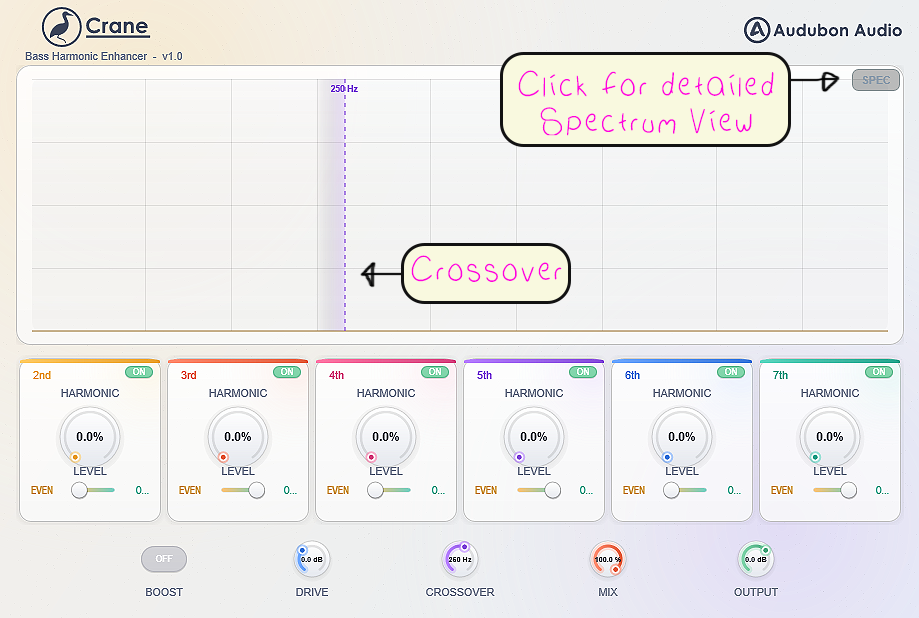
2
Global Controls (Bottom Row)
The bottom row holds the global controls that shape the overall signal flow — Boost, Drive, Crossover, Focus, Fund, Mix, Auto Gain, Delta, Mono, and Output. These apply to the whole plugin, not individual harmonics. (Boost has its own section below.)
Drive
−12 dB to +24 dB
Drives the input into the harmonic generator. More drive = more saturation and stronger harmonics across all active bands.
Crossover
60 Hz to 1000 Hz
Sets the frequency split point. Everything below gets harmonically processed; everything above passes through clean. Also draggable directly on the spectrum display.
Focus
60 Hz to 1000 Hz
A low-pass on the generator's input only — the clean output is untouched. Lower it to feed the generator a purer sub so complex or chordal bass makes clean harmonics instead of intermodulation. At 1000 Hz (default) it's fully open.
Fund
0% to 100%
Level of the clean low band underneath the harmonics. Keep it up for weight; pull it down and lean on the harmonics for the "missing fundamental" effect — the ear rebuilds the pitch on speakers that can't reproduce the sub.
Mix
0% to 100%
Blends in the generated harmonics. The clean bands stay put, so no setting combs the crossover. At 100% you hear the full harmonic addition; lower values keep the enhancement subtle over the original bass.
Auto Gain
On / Off
Automatic level compensation on the enhanced low band. As you add harmonics or drive, Crane trims the band to hold a steady level so louder never fools you into thinking it's better. Great for honest A/B.
Delta
On / Off
Solos the added harmonics — you hear only what Crane is generating, at the current Mix. The fastest way to check what each band is contributing and to catch harshness before it hits the mix.
Mono
On / Off
Folds the low band to mono before the generator, so the harmonics are mono too. Keeps the bottom end phase-solid and centred on club and vinyl systems while the highs stay stereo.
Output
−24 dB to +12 dB
Master output gain applied after the mix blend. Use this to compensate for level increases caused by adding harmonics.

3
Boost Toggle
The BOOST button sits next to the global knobs. When enabled it increases the internal harmonic intensity — the generator's level multiplier jumps from 1.5× to 2.5×. This gives you a more aggressive, dense harmonic stack. Use it when you want a heavily saturated, growling bass tone rather than subtle warmth.

4
Harmonic Cells (2nd – 7th)
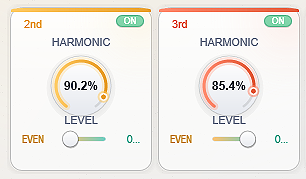
The six panels across the middle of the plugin each represent one harmonic order — 2nd, 3rd, 4th, 5th, 6th, and 7th. Each one is independently controlled. Think of them as individual harmonic layers you can blend to taste.
Level Knob
0% to 100%
Sets how much of that harmonic order is blended into the output. 0% means that harmonic is completely silent; 100% is full contribution.
Even / Odd Slider
Even ←→ Odd
Morphs that cell between neighbouring harmonic orders — toward its even-order neighbour (warmer, rounder) or its odd-order neighbour (grittier, more aggressive). The center blends both.
Bypass Toggle
On / Off
Bypasses that individual harmonic cell. Use this to quickly audition what each harmonic is contributing by toggling them on and off while the track plays.
Order Label
2nd – 7th
Shows the harmonic order for that cell. When the cell is active, its harmonic appears on the spectrum as a translucent marker “bell” at that harmonic's frequency.

5
Preset Bar
The bar in the header steps through Crane's presets — click the name (or the arrows) to load one. Crane ships with seven factory presets as starting points: Init, Sub Fatten, 808 Definition, Small Speaker Translate, Reese Growl, Wobble Teeth, and Trap Dirt. Save your own with the save button — user presets are stored as
.cranepreset files under Documents\Audubon Audio\Crane\Presets, so they show up in the bar on every session.Typical Workflow
A
Set the Crossover First
Want a fast start? Load a factory preset (808 Definition or Sub Fatten are good springboards) and tweak from there. Building from scratch, dial in your crossover first: drag the purple line on the spectrum display to the point where your bass fundamentals live — usually somewhere between 100–300 Hz for a typical bass sound. Everything below that point will get processed; everything above stays clean. Getting this right means your harmonics appear in the right frequency range and don't muddy the mid frequencies.
B
Start with Drive and One Harmonic
Set Drive to around
+6 dB to start, then bring up just the 2nd harmonic to around 30–50%. Listen to how it fills out the sub. The 2nd harmonic doubles the fundamental — great for making sub-heavy basses translate on smaller speakers. Once you have a feel for it, start adding the 3rd for grit. Even-order harmonics (2nd, 4th, 6th) tend to sound warmer and more musical; odd-order (3rd, 5th, 7th) are grittier and more aggressive.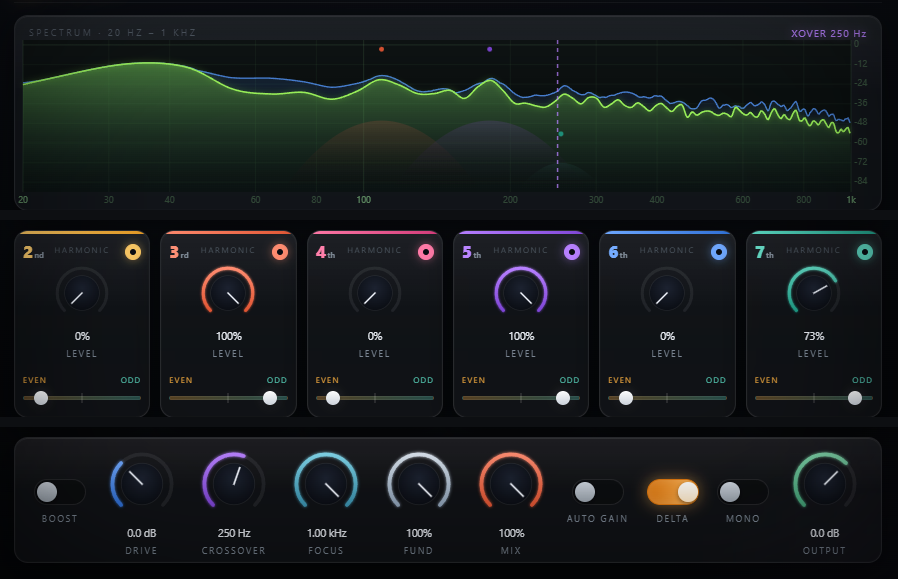
C
Use Even/Odd to Shape Character
Once your harmonic levels are in a good place, use the Even/Odd slider on each cell to shape the tone. Sliding toward Even leans the cell to its even-order neighbour — a rounder, analog-tape-like warmth. Sliding toward Odd leans it to the odd neighbour — transistor-style edge and bite. Try leaning the 2nd toward even and the 3rd toward odd for a classic bass enhancement sound that's warm on the bottom and aggressive in the mids.
D
Trim Output and Use Mix
Adding harmonics raises the perceived and actual loudness. Pull the Output knob back until the processed signal matches the level of your bypassed signal — this gives you an honest comparison, or switch on Auto Gain to level-match the enhanced band automatically. Tap Delta any time to solo just the harmonics you're adding. From there, use the Mix knob to blend in as much of the processed signal as you need. For subtle sub reinforcement on melodic basses, 30–60% Mix is often all you need. For full-on dubstep bass treatment, run it at 100%.