What Bowerbird does: Bowerbird splits your signal into up to five frequency bands and lets you drop your own VST3 plugins into each one — up to three per band, fifteen in total, dragged between bands with the mouse. It contains no effects of its own. The reason it exists is the crossover: most multiband splitters sum to an allpass rather than to unity, so simply engaging them rotates your phase, and the rotation changes with the band count. Bowerbird's default crossover sums to the input by arithmetic, so with nothing loaded it is inaudible at one band or five — and stays inaudible while you drag a split line mid-playback.
Getting Started
1
Install
Windows: unzip the download and copy
Bowerbird.vst3 into C:\Program Files\Common Files\VST3\. macOS: run the .pkg instead — it installs the Universal build (Apple Silicon and Intel) into /Library/Audio/Plug-Ins/VST3. Then rescan plugins in your DAW. Bowerbird is a VST3 effect and runs stereo in, stereo out — insert it on a stereo channel or bus.2
Activate
On first launch Bowerbird asks for the serial number from your Members Area. Paste it in and the activation is remembered on that machine. Until it is activated the plugin runs in demo mode, which mutes briefly and periodically and shows a DEMO badge — everything else works, so you can build and save racks while you decide.
3
Scan Your VST3 Folders
Open any empty slot and press Rescan VST3 Folders. This is the one step you have to do deliberately — Bowerbird never scans just because you opened it. The scan walks your standard VST3 locations one file at a time so the interface stays responsive, and the result is cached to disk and shared by every Bowerbird instance, so the next one you open is instant. You only need to rescan after installing new plugins.
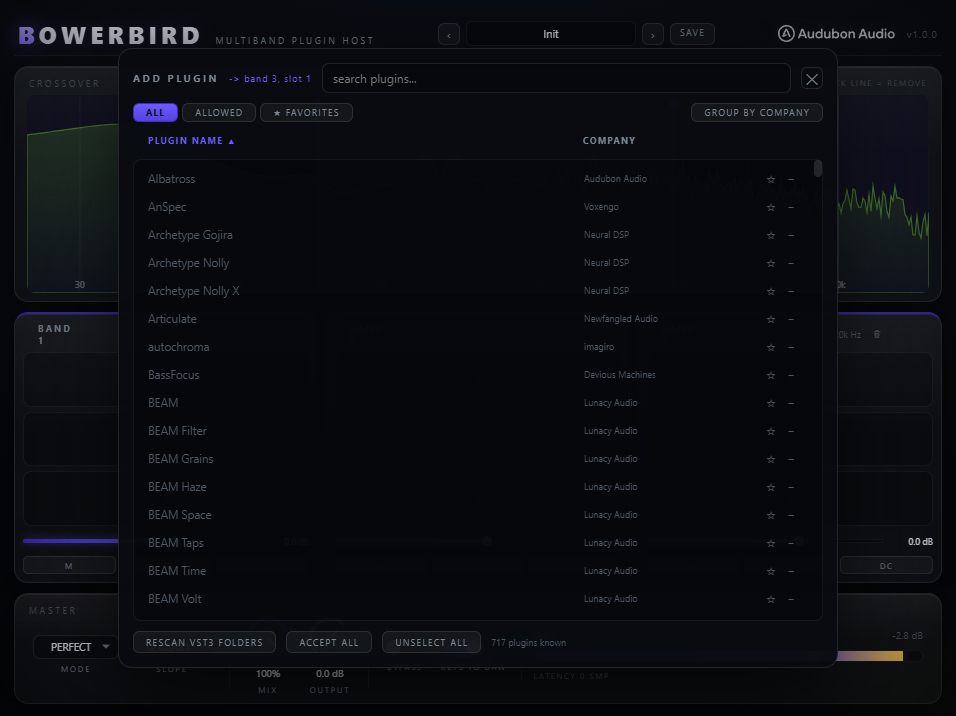
Worth knowing before you build a session on it: hosted plugins run inside Bowerbird, inside your DAW. A third-party plugin that crashes can bring the session down with it — the same exposure you already have loading that plugin directly, but a host makes it worth stating plainly. Crashes during a scan are handled: the file that killed the scan is recorded and skipped automatically on the next launch, so a bad plugin cannot lock you out of the browser.
Interface Overview
4
The Spectrum and the Splits
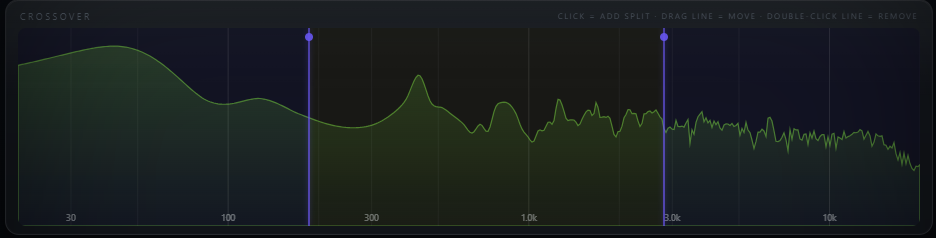
The top panel is a live analyzer with your crossover points drawn over it as vertical lines. This is where you build the band layout.
ADD A SPLIT
Click empty space
Clicking the spectrum where there is no line adds a crossover there, up to five bands total.
REMOVE A SPLIT
Double-click a line
Removes that crossover and merges the two bands. The filter tree is rebuilt off the audio thread and crossfaded in over 10 ms.
MOVE A SPLIT
20 Hz – 20 kHz
Drag a line to retune the crossover. Splits are smoothed and mutually constrained, so they cannot cross each other or collapse a band to nothing.
BANDS
1 – 5 · default 3
The band count is a real automatable parameter, so it changes safely while audio is running.
5
Band Columns and Slots
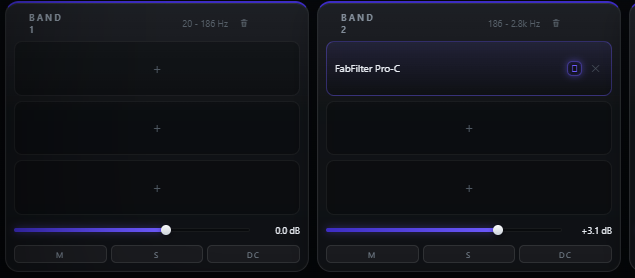
Below the spectrum, one column per band. Each column holds three plugin slots that run in series, top to bottom, plus that band's own level, mute and solo.
EMPTY SLOT
Click to load
Opens the searchable browser built from your cached scan. An empty slot passes audio through untouched — it is never silence.
LOADED SLOT
Click to open editor
Shows the plugin name and vendor. Clicking opens that plugin's own editor in a floating window; the power icon bypasses it and the × removes it.
DRAG TO MOVE
Within or across bands
Drag a loaded slot onto another to swap, onto a gap to insert, or onto another column to move that plugin to a different band. A band already holding three rejects a fourth with a shake instead of silently dropping it.
GAIN · MUTE · SOLO
−60 to +12 dB
Per band, at the foot of each column. Gain is smoothed over about 5 ms. Solo as many bands at once as you like.
6
The Master Row
The bottom strip sets how the split itself behaves and how the whole thing lands.
MODE
Perfect / Classic · def Perfect
Perfect is the complementary split that sums exactly, with no added latency and no phase rotation. Classic is a true allpass-compensated LR4 tree — textbook symmetric band shapes, magnitude-flat sum, but it rotates phase and does not null. Pick Classic deliberately, when you want the classic band character.
SLOPE
6 / 12 / 24 dB/oct · def 12
In Perfect mode the slope governs each split's lower band. Steeper means a tighter band below and, as its exact complement, a leakier band above — so 24 dB/oct is best read as "tight low band", not "tight bands". 12 is the balance point.
MIX
0 – 100 % · def 100 %
Blends against the true input, latency-aligned, rather than against a phase-matched copy of it. At 0 % you get your dry signal back.
OUT · BYPASS · LATENCY
−24 to +12 dB
Master trim, whole-plugin bypass, and a live readout of the latency Bowerbird is reporting to your DAW in samples. With an empty rack that reads zero.
7
Latency, Bypass and Saved State
The parts that make a multiband host behave rather than just work.
PER-BAND PDC
Automatic
Bowerbird sums each band's hosted latency, delays the other bands to match the slowest, and reports the total to the host. Put a linear-phase EQ on one band only and the bands stay in time with each other.
LATENCY CHANGES
Polled every 200 ms
Many plugins change their reported latency when you switch them between linear and minimum phase. Bowerbird notices, recomputes the delays, crossfades to them and asks the host to redo its compensation.
SLOT BYPASS
Power icon
If the hosted plugin has its own VST3 bypass parameter, Bowerbird sets that — the plugin keeps reporting its latency and the band stays aligned. Only a plugin with no bypass parameter is routed around, and then its latency is taken back out of the band.
MISSING PLUGINS
Settings retained
Each hosted plugin's own state is saved into your project, and plugins are matched by file path and unique ID, so moving one does not lose it. Uninstall one and the slot reads as missing while holding its settings — reinstall and they come back intact.
8
Presets
Two kinds, and the difference matters. The seven factory presets are crossover templates only — Init, Two-Band Sub Split, Sub Guard 90, DJ Isolator, Bass / Mid / Air, Four-Band Mix Bus and 5-Band Surgeon set band counts and split frequencies and never touch your loaded plugins, so you can try a different frame without dismantling the rack. A preset you save yourself stores the whole thing: splits, plugins and each plugin's own settings. That makes it a portable rack — with the obvious caveat that it only loads completely on a machine that has those plugins installed.
Typical Workflow
A
Insert and Leave It There
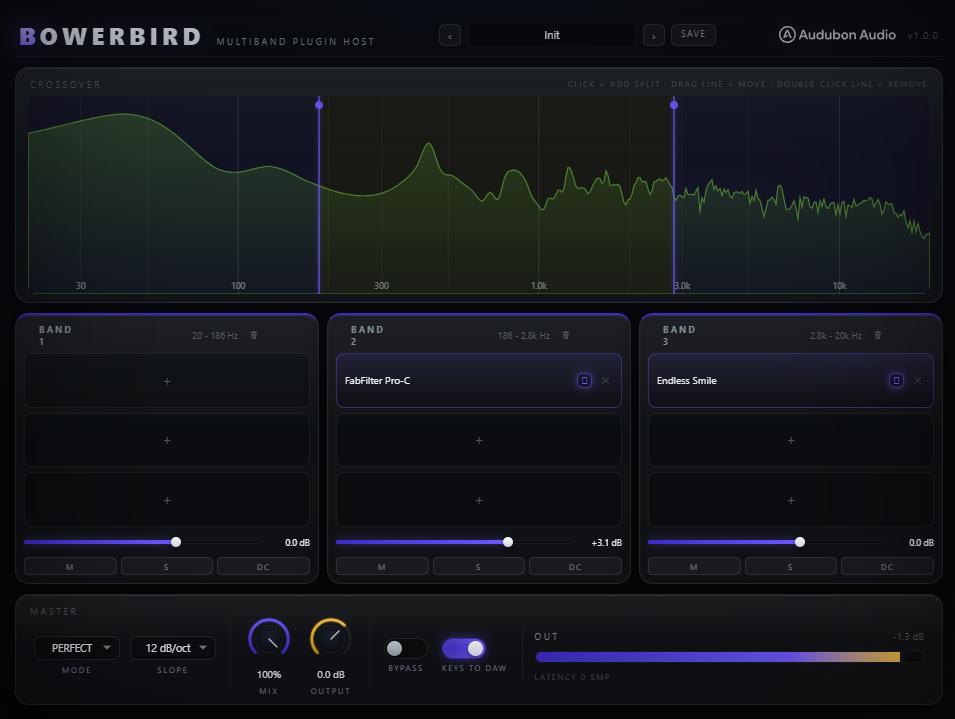
Drop Bowerbird on the channel or bus you want to treat in bands. With nothing loaded and everything at default it is doing precisely nothing — no phase rotation, no latency, no colour — so there is no cost to inserting it before you have decided what goes in it.
B
Build the Frame First
Set the band count and drag the splits until each band actually contains the thing you want to treat separately — solo each band to check rather than guessing from the spectrum. Getting the frame right before loading anything saves undoing it later. A 120 Hz split keeps a bass fundamental in band one; 800 Hz and 4 kHz separate body from bite from air.
C
Load Only Where You Need To
Fill the bands that need work and leave the rest empty — an empty band passes through, so it costs you nothing. This is where the plugin earns its keep: a saturator that only ever sees the mids, a linear-phase EQ that only ever sees the top, a chorus that cannot reach the sub.
D
Rearrange Freely
If a plugin turns out to belong a band up or down, drag it there — latency compensation follows on its own. Reorder within a band by dragging slots past each other. Use the per-slot power icon to A/B one plugin without disturbing the band alignment.
E
Balance and Save
Rebalance with per-band gain, pull the whole effect back with Mix if it went too far, and trim Out for a level-matched comparison against bypass. Then save the rack as a preset so the same chain is one click away in the next session. If a hosted plugin adds DC offset, switch on that band's DC filter — it is off everywhere by default, because a permanent highpass would break the null the whole plugin is built on.